Android Forums at AndroidCentral.com >  Android Chat >  General Help and How To > Getting Started with Android - Tips and Tricks

Getting Started with Android - Tips and Tricks

Reply
Like Tree95Likes

 
Thread Tools Search this Thread
    Thread Author   #1  
Old 08-30-2010, 05:21 PM
AC Forums Adviser
 
Posts: 2,332
Join Date: May 2010
Thanked 1,183 Times in 254 Posts
Likes Received: 318
Activity: 4/20
Welcome!
If you are new to the Android Central Forums, Welcome! Don't hesitate to ask a question. Our Advisors, Moderators, and half-million Members will be quick to help. Here are our Guidelines and Android Dictionary.

World-wide, over [Only registered users can view links. ]. Android has hundreds of amazing features, but how do you find them all? Plus with so many apps, how do you find the best ones? This Guide compiles over 500 tips and tricks to help you get the most from Android. Bookmark it as your quick reference. Here we go!

Transfer everything over
Here are special guides to help you transition from your old phone:
Apple User's Guide to Android
BlackBerry User's Guide to Android
Palm webOS User's Guide to Android
Putting Music, Photos, Movies, Wallpaper and Documents on your phone
Backup, Restore or Transfer Apps, Files, and Settings

Setup
Settings
Email - Gmail
Messaging
Phone
Internet
Contacts
Applications

Customize
Keyboards
Notifications
Live Wallpaper
Folders
Theming

Tips and Tricks
Cut, Copy, Paste, and Share
Search and Voice Search
Extend Your Battery - Speed Up Your Phone
Set Reoccuring Notifications and Put Notifications on Your Lockscreen
Visual Voicemail
Multitasking

This thread is for general topics. Please see the Android Forums for specific phones or rooting.

← Click the Getting Started button at the top of any page to come back here.

Overview
Android is a Google mobile Operating System (OS). There are over 700,000 new Android's activated a day and nearly 500,000 Applications for every need. There are dozens of Devices from Motorola, HTC, Samsung, LG, Acer, Asus, and Sony. If you see a word you don't know, see the Android Dictionary.

Choose your carrier. The [Only registered users can view links. ] shows the coverage levels found by users of their Sensorly app. Signal boosters like the [Only registered users can view links. ] and Amazon. For Sprint users: Get Your Spint EVP Discount, Upgrade Your Sprint Phone Every Year, and Get Great Reception at Home.

Choose your device. You can choose from small, medium, and large. You can opt for a physical keyboard, HD output, video chat, etc. Some phones are "free" but may require a 2-year contract totaling $2,000. Here is a Phone Comparison, and a Tablet Comparison. Note that phones such as the Nexus S line do not come with all of the features listed here.

Contacts, Facebook, Twitter, & LinkedIn Sync
Android integrates updates from Exchange, Facebook (except the Nexus S), Flickr, LinkedIn, Twitter, and other accounts into your Calendar and Contacts. As friends update their email addresses, birthdays, phone numbers, events, photos, and status, your phone is automatically updated.
Set accounts to sync: Tap Home > Menu > Settings > Accounts & Sync to add an account or change settings.
[Only registered users can view links. ] can keep your Google (Android) Calendar synced with your Outlook calendar.
New contacts: Always save contacts as Contact Type Google NOT to Phone or they will not be backed up automatically.
Save battery: Set Accounts to update less often to save battery. Tap Menu > Settings > Accounts & sync > {account}.
Backup contacts: Tap Home > Contact (on HTC People) > Inport/Export > Export
Show/Hide Contacts: Tap Contact (on HTC People) > Menu > View to turn on or off contacts,
• For LinkedIn, first download the [Only registered users can view links. ].
Show Groups: Tap Contacts > Menu > Groups button to see only certain groups of contacts.

Activate your phone
Here is and article and video on setting up your phone. Here are recent "Everything you need to know" articles:
- EVO 4G - Epic 4G - Droid X - Droid 2

Keys
On/Off: Tap On/Off Key on top to turn screen on/off
- - Long Press On/Off (for 1 second) for Power off, Silent Mode, Vibrate Mode, Airplane mode, etc.

Tap Home to leave an app. Tap the app again to come back where you left off.
- - Long Press Home (for 1 second) to see your most recently used apps. [Only registered users can view links. ] shows 15 apps.
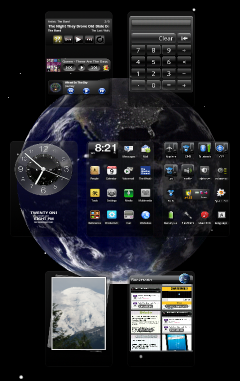
- - Tap Home twice to see all of your home screens

Menu: For homescreen or app options and settings
- - To see all apps, tap Menu on Home screen > All Apps

Back : Tap Back to back out of menus or an app

Search: Tap Search for a universal Search of apps and internet. If you phone does not have a Search button, try Long-press Menu.
- - Voice Search: Long Press Search (also for Voice Actions)

Android Basics
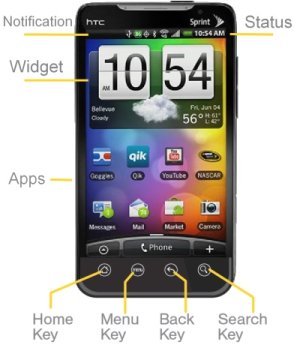
Every Android is a little different but here is the general layout. Notifications are in the top bar. Apps and Widgets are in the middle. Main buttons are at the bottom. Swipe left or right for more homescreens. You'll probably want your basic apps such as Contacts, Internet, Voicemail, Messages, and Mail on your center Homescreen.
Find your apps: Tap your Apps icon and tap an app.
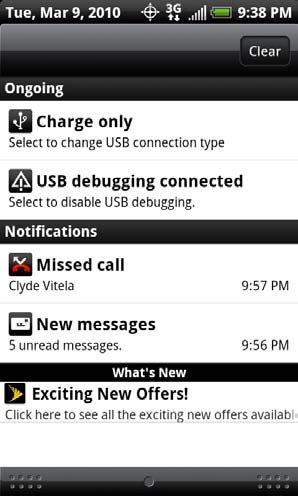
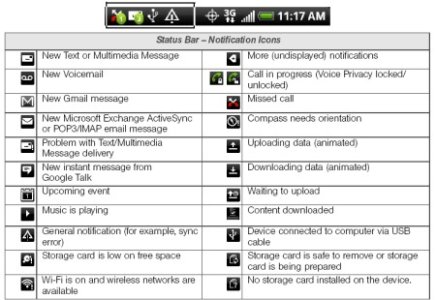
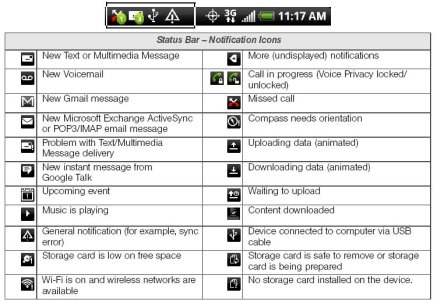
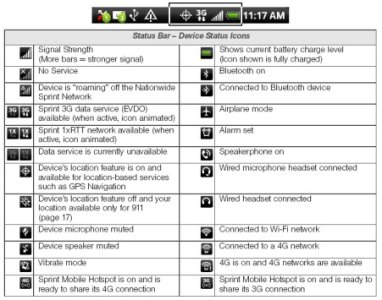
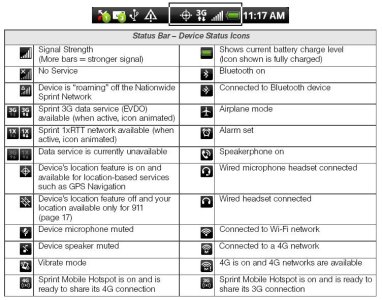
Notifications: Email, call, text, and other Notifications appear in the top bar take up no screen space! Drag down to see them.
Homescreens: Your main homescreen can have Folders for 320 apps. Another can be your Setup Control Panel.
Multitasking: Long Press Home (Recent Apps in ICS) then tap a recent app - 2 taps! More on Multitasking later.
Onscreen Keyboard: You have many keyboards and options to choose from. See the Keyboards section.
Applications: There are over 400,000 apps. See the Applications for 100 of our favorites (and how to install them).
Search: Tap Search and just type whatever you want. Long-press Search to just talk instead.
Cut & Paste: Just double tap something to Cut, Copy, Paste, and Share

Download an App or Widget
← Tap the [Only registered users can view links. ] icon to download applications or widgets. A widget is an app on a homescreen that might show your current weather, time, battery life, etc. Be warned, some may drain your battery. To see your apps, tap My Apps. Most are free. You can also upgrade your Email, Messaging, Keyboard, and other apps.

Make it your own
You can also customize almost everything.
• Add an App shortcut or widget: Long Press a blank spot. In Android 4.0 (ICS): Tap MyApps.
→ Remove an app shortcut or widget from a home screen: Long Press and drag to the trash can icon.
Wallpaper: Tap a blank spot on a homescreen and tap Wallpaper (For more, see Wallpapers and Ringtones)
Live Wallpaper: Animated wallpaper. Your background can snow or rain. The earth can spin and little robots dance.
Keyboards - find a keyboard perfect for you.
Theming: You can easily change just the icons or even change it all
Notifications: Customize sounds, vibrations, and LED notifications
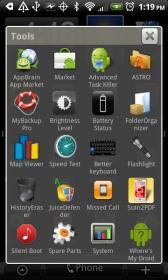
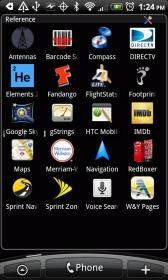
Folders: Organize your apps into folders


Zoom
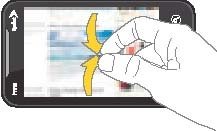
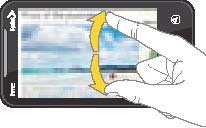
To Zoom In or Zoom Out just Pinch Out or Pinch In with two fingers on the screen.

Screenshots
Posting a screenshot with your question can really help others get you answers. In Android 4.0 Ice Cream Sandwich (ICS) press and hold Volume Down and then tap Power. Some Samsung phones let you Press and Hold Home and tap Power. Some HTC phones can take a screenshot with the Shoot Me app. Here is an app that works for many: [Only registered users can view links. ] ($5) and a bit trickier but free way.

Other Resources
• The Android Central Blog and check in daily for the latest News, Reviews, Videos, Apps, and Device info
How-to and Getting Started articles:
Converting videos: Convert DVD's and other videos to mp4 or 3gp files that can play on your Android phone
Rooting: Rooting let's you customize almost anything on your phone and run special apps.
Tethering: Use your phone as a modem for you PC. [Only registered users can view links. ] and [Only registered users can view links. ] are popular apps to tether without root.

Uploading images to Facebook, Twitter, Picasa, etc.
[Only registered users can view links. ]
[Only registered users can view links. ]
[Only registered users can view links. ]
[Only registered users can view links. ]
If this helped you, please click ↓
Attached Images
File Type: png Home-20x20.PNG (631 Bytes, 53155 views)
File Type: png Search-20x20.PNG (576 Bytes, 32507 views)
File Type: png Menu-26x13.PNG (379 Bytes, 51429 views)
File Type: png Back-25x16.PNG (348 Bytes, 51353 views)
File Type: png Silent.png (315 Bytes, 51428 views)
File Type: jpg gmail_icon.jpg (856 Bytes, 45207 views)
File Type: png searchicon2.png (827 Bytes, 44850 views)
File Type: png Getting-Started.png (1.4 KB, 131298 views)
File Type: jpg EVO-Labeled-4.jpg (59.6 KB, 20806 views)
File Type: png Android-Marketplace-Icon.png (5.2 KB, 27189 views)

Last edited by milominderbinder; 01-15-2012 at 10:20 AM.
dbareis, slg42, Wiley_11 and 13 others like this.
Thanked by 153 33497746, 340DartMan, agtitan, alisasblog, allison44, amotter, AndroiderX, Aotek 42, Art DeCoeur, asmith7960, balsamic, Bashiier, BeachyT, Belle Mae, Bethany66, Biggnaa20, bigplay27, BigRed_Irishman, Billy_Willy, bloodydug, bmoose6289, BOOOTS, buckeye_jeff, bzxzlg, Caped Codder, Carolyn Sorensen, Chrisy, chumcoho, cochese2323, cotylee1991, cp02781, cutlassracer, dadave, darealm, dawghowse, dbareis, dcannoli, denekrad, Devlyn16, dicko14, DINGSTER1, disney.jessica, dj2big, DNicolasL, dotsin, eibbed0001, elle305, ericdives, EvilTessmacher, fatboy97, feathertoad, fgcchevy, floppski, FoBangah, Frehley, Gato.Negro16, Gidget., GirlGeek123, Got2buzz, graybeardnc, gsonsevo, Guppy1509, hokuSai101, houtek, HTMLSpinnr, IMPOSSIBLEMAN, isdaako, Jaguarr, java007, jcprunty, Jennifer, jgfan1972, JimHuff, jmo562003, jtowndawg, justlooking, k4thom, kalex1114, kambroso, Kazer, kbd517x, Kilikizaro, kls6179, kridder0, LadyDi, Lil Red Vampire, ll Wasabi ll, lovy, lulubee, melt2sk8, menno, mfutoran57, Michaeljohn, mlobozza, mpcc76, MRHIGHSPEED, mysz, NEllis921, nightdevil21, Nodak, noisemaker, NomadManiac, NotJustAPhone, o1ofritoo1o, onick, orchidsbloom, pastorich1, pavlovskig, pigwhiffle, pjw, pongo647, poohbear30, QnzDva_78, r0ckrat, RB26, Redwitch, richrd, RickMG, robor007, rockstarbunny, RodgerDodger_61, Runs with scissors, samuraifortruth, scaryhumor, Schwermzilla, shauram, slg42, Sonkway, SphincterBoy, Sprint_Optimus_S, squ1rr3l, sterrac, sumana, sweaner, Technologic 2, terpitude71, texasmommy, TiffanyNHouston, timbollama, tmitch5, ToddPsyD, tomkind80, tony bag o donuts, undertekker, USMC0351, vantechmag, verwon, vespacar, Vietnam720, WAldenIV, Wiley_11, Yeti, _Wes
    Thread Author   #2  
Old 08-30-2010, 05:23 PM
AC Forums Adviser
 
Posts: 2,332
Join Date: May 2010
Thanked 1,183 Times in 254 Posts
Likes Received: 318
Activity: 4/20
Home Screen Settings
One of Android's greatest strengths is that it has settings for almost every possible feature and app. That can also be a lot of complexity but the [Only registered users can view links. ] app can put them in one place. Here are just a few main settings. Tap Home > Menu > Settings then...
Personalize: Scenes, Wallpaper , ringtones
Wireless: Set up your WiFi, Bluetooth, Hotspot, Tethering, etc. Turn WiFi Settings Network notification ON to automatically find WiFi hotspots.
Sound: Has some of the Ringtones, Notifications, etc. ([Only registered users can view links. ] has almost all).
Display: LED Notifications (except the Nexus S), brightness, timeout, etc.
Search: Include: Web, Email, Calendar, Messages, Contact (on HTC, People), etc.
Applications: Manage apps, Force stop, uninstall, etc.
Applications > Development: Stay awake ON when charging or use [Only registered users can view links. ].
System Updates: Firmware, Profile, PRL (available towers), and Phone software (Android version)
Voice recognition settings > Personalized recognition ON so Google Voice can learn how you speak
Wireless and network > Set up radios and turn ON/OFF: 4G, Bluetooth, WiFi, Airplane mode, etc.

Key Widgets
[Only registered users can view links. ] puts a button on your screen to turn your LED into a powerful flashlight.
[Only registered users can view links. ] keeps the display on when charging but lets it still dim. No unlock needed on charger!

General Settings
• Turn off keyboard vibration to save battery: Menu > Settings > Sound & Display > Haptic feedback OFF
• Turn off animation to go faster: Menu > Settings > Display > Animation OFF

Calendar Settings
[Only registered users can view links. ] - Day and date in a 1x1 widget. ([Only registered users can view links. ] has color options)
• Set to Month View: Tap Menu > More > Settings . Calendar view Settings > Start in > Month
• Reminder settings: Tap Menu > More > Settings . Reminder settings to set sounds and vibration.
How to Use Your Camera LED as a Notification LED

Wallpaper
Wallpaper is the background image behind your homescreen icons and widgets. Also see Live Wallpaper.
• The Wallpapers, Ringtones, and Themes forum has thousands of Wallpapers to download.
• Wallpaper must be in one of these type of files: jpg, gif, png, or bmp.
• To set your Wallpaper, tap Home > Menu > Settings > Personalize > Home Wallpaper.

Lock Screen and Themes
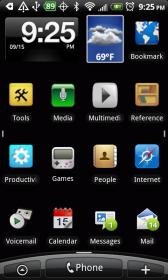
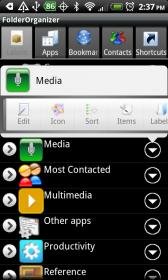
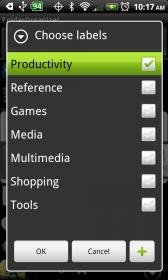
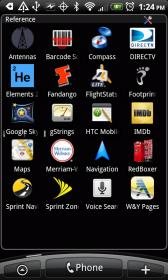
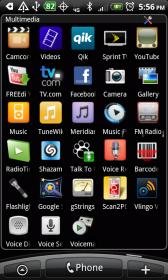
Simple Theming: Using Folder Organizer to "Theme" Home Screen Icons For Free
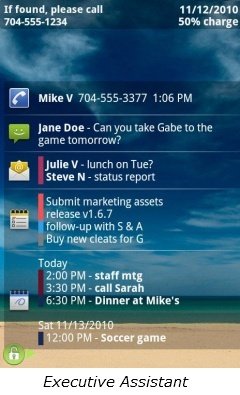
Lock screen: Executive Assistant - Lists notifications on lock screen, tap the one you want.
[Only registered users can view links. ] - Disables lock screen, phone opens fast. • [Only registered users can view links. ] ($2)lets you customize it.

Set Alerts and Ringtones
To set ringtones and alerts:
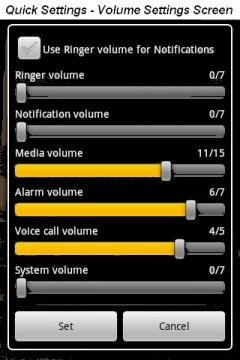
[Only registered users can view links. ] let's you adjust sounds all at once including Notifications: Tap Volume control or for Ringer for Phone ringer.
• Basic notification sound: Tap Home > Menu > Settings > Sound > Notification.
• Phone ringtone: Tap Phone > Settings > Sound > Phone ringtone.
• Text Messaging: Tap Messages> Menu > Settings > Notification sound.
• Calendar: Tap Calendar > Menu > More > Settings > Reminder settings > Select ringtone.
• Gmail: Tap Gmail> Menu > More > Settings > Ringtone.
• Google Talk: Tap Google Talk Menu > Settings > Ringtone
• Facebook: Tap Facebook > Menu > Settings > Notification ringtone.
• Contact's ringtone: Tap Contacts (or People) > {contact name} > {choose a ringtone}
• Handcent: Tap Handcent> Menu > Settings > Notification settings > Notification sound.

Other Ringtones, Alerts, and Alarm Tips
[Only registered users can view links. ] has nearly endless ringtone, wallpapers, and notification sounces you can download for free.
[Only registered users can view links. ] can edit a song to 30 seconds or use [Only registered users can view links. ]+[Only registered users can view links. ] on your PC then transfer to your phone.
• The Wallpapers, Ringtones, and Themes forum has links to thousands of free ringtones.
• Sound files can be [Only registered users can view links. ].
• Sounds have to be in the right folder. Connect to your PC as a Disk Drive, create the subdirectories as needed, and copy.
_ • Ringtones: /media/audio/ringtones
_ • Text SMS Alerts: /media/audio/notifications
_ • Alarm Alerts: /media/audio/alarms
_ • If you are rooted, they may show up under /sdcard/media/audio/

Repeating Alert LED's and Tones
Many Phone, Email, Text, and Calendar apps will alert you only ONCE of new notifications. Fortunately, there are apps that will let you set repeating, customized sounds, vibrations, and LEDsfor missed calls, emails, and messages.
Executive Assistant (free) Set repeating alerts for calls, texts, emails, etc. Option to put them on your lock screen! ([Only registered users can view links. ], [Only registered users can view links. ])
[Only registered users can view links. ] also lets you set repeating LED, vibrations, and sound notifications. (free, [Only registered users can view links. ])
[Only registered users can view links. ] ($2) is another option to set repeating notification sounds, vibration, and LEDs. [Only registered users can view links. ].
Flashlight Alerts uses the camera flash LED as your Notification LED for Calls, Texts, Email, Gmail, K-9, etc. Tutorial.
• If your phone lacks a Notification LED like the Nexus S, try [Only registered users can view links. ] as a workaround.
[Only registered users can view links. ] can automatically turn off notifications when you are at work, school, etc.
If you used an app like Executive Assistant, you will want to turn off the regular alarms. See below.

Set Up Your Own Control Panel
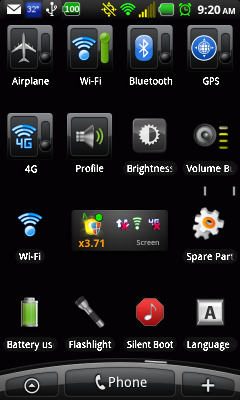
Using the Folders tips below, you can have up to 320 apps just two taps away on your main homescreen. Why not set another homescreen as your Settings Control Panel? This example features HTC widgets but other phones have similar widgets. There are also many widgets available in the Android Market like the free Curvefish
[Only registered users can view links. ][Only registered users can view links. ][Only registered users can view links. ][Only registered users can view links. ][Only registered users can view links. ] widgets.

The example to the right is a second homescreen with a number of widgets and shortcuts that let you quickly see key settings and change them with just a tap. In the top Notification bar, the free [Only registered users can view links. ] app ([Only registered users can view links. ]) shows that the battery is at 100%. The Weather Channel says it is 32º and there is new mail. No widgets needed.

Across the top row of icons is Airplane, WiFi, Bluetooth, and GPS followed by 4G. When you have WiFi access, you can set everything else off to save battery. (Airplane OFF means that you can still get phone calls and texts.)

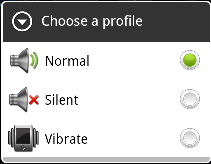
A Sound Profile widget like the one shown from HTC lets you set Normal, Silent, or Vibrate. Also consider the free [Only registered users can view links. ]. To put a widget on a homescreen, long-press an open spot, tap Widget and pick one.

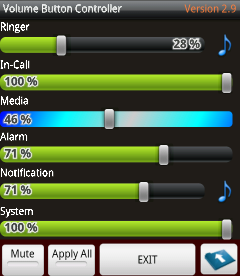
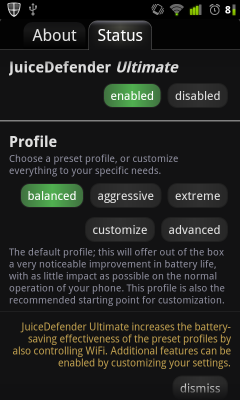
The free [Only registered users can view links. ] has controls for Bluetooth, GPS, 3G, 4G, and volume levels in one place. [Only registered users can view links. ] gives you instance access to many key settings. The JuiceDefender widget shows that it is extending battery life by 3.71 by automatically turning off radios when not in use. See Battery Life Tips and Tricks for more on this great app.

You can set up a WiFi shortcut to let you quickly log into a new WiFi or exclude an old one. The Battery Use shortcut shows what is taking your battery. The Language shortcut lets you set up Keyboards. To put a shortcut on a homescreen, long-press an open spot, tap Shortcut and pick one.

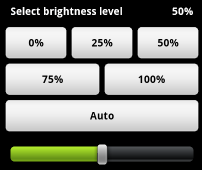
The free Curvefish [Only registered users can view links. ] lets you tap a preset brightness or set any brightness you like.

Upgrade Your microSD Card
Almost all Android devices come with a microSD card to store photos, music, data, files, and apps. A microSD card is about [Only registered users can view links. ]. [Only registered users can view links. ] or [Only registered users can view links. ]. Get a "Class 10" microSD for fast 10 MB/s speeds. The [Only registered users can view links. ] and are supported by microSDXC compatible phones such as the [Only registered users can view links. ]. The [Only registered users can view links. ] app frees up space on your phone by moving apps to your SD card.

Connect the phone to your computer using a USB cable. Select Disk Drive Mode, typically by using the pull-down Notification menu at the top. Copy everything on the current microSD card to your PC. Otherwise you will lose files, music, photos, and data stored on your microSD card. Eject the phone from the PC using Windows Explorer. Dismount the microSD Card, Menu > Settings. Long-press the OFF button and turn the phone fully off.

Remove the microSD card (see your manual). Put in the new microSD card, but the battery back in, and turn it on. Use USB Disk Drive Mode to delete everything on the new microSD card if needed. Copy the files you saved on your PC to the new microSD card. Eject the phone.
Attached Images
File Type: png Vibrate.png (886 Bytes, 51409 views)
File Type: png Ariplane.png (527 Bytes, 51418 views)
File Type: jpg Pinch-In_22.jpg (17.3 KB, 34126 views)
File Type: jpg Pinch-Out_23.jpg (17.7 KB, 34184 views)
File Type: gif thanks4.gif (8.3 KB, 77274 views)
File Type: png Settings-Page-Sample-Thumb.png (53.2 KB, 32742 views)
File Type: png Sound-Profile.png (8.4 KB, 12246 views)
File Type: png Volume-Button-Controller.png (28.1 KB, 12140 views)
File Type: png Brightness-Level.png (6.5 KB, 46853 views)
File Type: jpg Executive-Assistant-thumb2.jpg (45.1 KB, 29145 views)

Last edited by milominderbinder; 01-21-2012 at 09:21 AM.
    Thread Author   #3  
Old 08-30-2010, 08:48 PM
AC Forums Adviser
 
Posts: 2,332
Join Date: May 2010
Thanked 1,183 Times in 254 Posts
Likes Received: 318
Activity: 4/20
Android uses a very easy approach to cutting and pasting to move text, images and other content. For instance you might copy a great photo on a website and paste it into a text to a friend. Or you might copy a text message and paste it into an email or Share it on Facebook. [Only registered users can view links. ] like [Only registered users can view links. ] ([Only registered users can view links. ]) or [Only registered users can view links. ] ([Only registered users can view links. ]) let you copy a stack of things to paste.

Cut and Paste While Typing
You can easily move text around while you are typing. On some phones, you many need to Tap Menu for Cut and Paste options. If you have a phone with a physical keyboard, you may need to press and hold Shift while you swipe you finger over the content to copy.
• Double Tap or Long-press to select a Word.
• To select more content: Drag the selection points to enclose the content you want.

If you are typing an email, text, etc., long press in the text box and you will get a number of options:
• Select All: to select everything in the text box
• Select text beginning with where the cursor is now: Just touch where the other end of the selection will be.
• Cut all: deletes everything in the text box and copies it to the clipboard
• Copy all: copies everything in the text box to the clipboard
• Paste: pastes whatever is in the clipboard

Cut and Paste Other Content
You can also copy text, photos and more from web pages, and other sources that are not in a text box. On some phones, you many need to Tap Menu for Cut and Paste options. If you have a phone with a physical keyboard, you may need to press and hold Shift while you swipe you finger over the content to copy.
• Double Tap or Long-press to select a Word.
• To select more content: Drag the selection points to enclose the content you want.
• Select text beginning with where the cursor is now: Just touch where the other end of the selection will be.
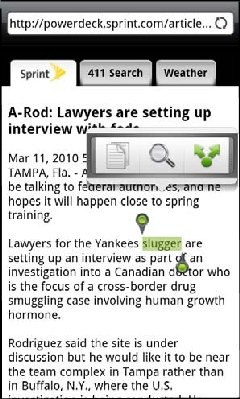
• Copy: Tap the Copy (icon to the left) to copy the text, photo, etc.

To paste this content that you have copied into an email, text, Facebook, etc., open the other app and Paste as described above. If your phone has a physical keyboard, press and hold the shift key and then drag your finger over the content to copy.

Search, Dictionary, and Translate
Cut and copy are just the beginning. See the magnifying glass Search icon in the screenshot above? Click it for:
• Wikipedia Seach
• Google Dictionary
• Google Translate

Share Options
You can share a link to a YouTube Video, website, or an app in the Android Market, etc. via:
• Email
• Facebook
• Twitter
• Text message

Sharing Apps
[Only registered users can view links. ] - You can share a link to an app in the Android Market. MyAppSharer let's you email the actual app apk.
[Only registered users can view links. ] - Bump another Android or iPhone to share photos, contacts, or a link to an app in the Android Market.
Attached Images
File Type: jpg Select-Text-873.jpg (64.0 KB, 33182 views)

Last edited by milominderbinder; 09-29-2011 at 06:47 PM.
    Thread Author   #4  
Old 08-30-2010, 08:49 PM
AC Forums Adviser
 
Posts: 2,332
Join Date: May 2010
Thanked 1,183 Times in 254 Posts
Likes Received: 318
Activity: 4/20
Android Multitasking
Android Multitasking is so easy you may not know you are Multitasking. It might go like this...
→ You are listening to tunes and start an Email. A Calendar pop-up says: "Get gift for bday party"
→ The store has it but the price is ridiculous. Use [Only registered users can view links. ] to see Best Buy has it on sale.
→ You hear a song & [Only registered users can view links. ] it to see who it is. You [Only registered users can view links. ] of it from YouTube.
→ As you drive, you keep getting texts. You use Messaging speech to text to reply.
→ Best Buy tries to charge you full price. You show them their own in-store ad online.
→ You have voice mail. Use Visual Voicemail to hear the party is now at Olive Garden.
→ You get a Facebook that the party now starts at Olive Garden. You reply.
→ You use [Only registered users can view links. ] to say: "Navigate to Olive Garden"
→ At the party, video chat with a friend who's away.
→ Take photos & HD video & post on Facebook. You [Only registered users can view links. ] your number to someone new.
→ Later, you go back to the email and say, "I'll send more tomorrow."

That's just an hour in your life. You email, text, browse, play, and chat all at the same time. You get email, text, calendar, and other Notifications. You can respond and and go right back where you left off in the other apps.

2 Tap Multitasking
With 2 taps you can switch back where you left off:
Recent Apps: Long Press Home (for 1 second) > {App}.
16 Homescreen Apps: Tap Home > {App}.
• If you like a card interface, try [Only registered users can view links. ], [Only registered users can view links. ], [Only registered users can view links. ], [Only registered users can view links. ]

3 Taps to 256 Apps
You can put up to 16 Folders on your main homescreen with up to 16 apps in each folder. For details and setup, see Folders. With folders, up to 256 apps are just 3 taps away:
• Tap Home > {Folder} > {App}

Use Search to Open an App
With Search, you are never more than four taps away from any app, open or closed.
• Tap Search then start typing the name of your app such as "ma" to bring up "Mail", "Maps", etc. Tap the one you want.
• Long Press Search (for 1 second) then you can use Voice Search to just say the name of your app. Tap the one you want.

Managing Apps
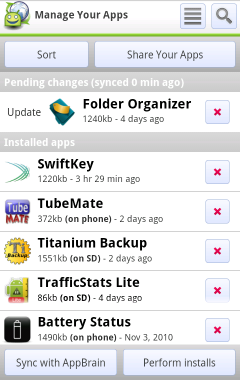
To see the apps that are running, Tap Home > Menu > Settings > Applications > Manage Applications > Running. While many apps are "running," fear not. Android makes apps that are not in use hibernate until you need them again. Tap an app then Force Stop if you know you will not be using it but be careful. Most apps are open for a reason.

Automatic Task Killers
[Only registered users can view links. ] (ATK's) allow you to manually or automatically kill certain apps. The theory is that even a hibernating app may be taking some battery life. But [Only registered users can view links. ] that they actuall hurt, not help. This article has a wealth of information and options.

Multitasking Notes For Nerds
If you are not a nerd, shield your eyes! If you are, you may have more questions about just how Android does "Multitasking." Your phone can't actually do more than one thing at a time. Android uses "time sharing" to make it seem like it is doing dozens of things at once. Apps and processes "save state" until needed again. This saves battery and is so fast that apps reopen right where you left off. THere is a very nerdy video in [Only registered users can view links. ] from Google. [Only registered users can view links. ] is similar but uses cards to let you look through open apps much like [Only registered users can view links. ]'s Recent Apps and Windows WM7.
If this helped you, please click ↓
Attached Images
File Type: png See-All-Homescreens-At-Once.png (115.0 KB, 11611 views)
Last edited by milominderbinder; 10-03-2011 at 03:17 PM.
    Thread Author   #5  
Old 09-01-2010, 01:11 PM
AC Forums Adviser
 
Posts: 2,332
Join Date: May 2010
Thanked 1,183 Times in 254 Posts
Likes Received: 318
Activity: 4/20
General
• To see the Topbar Notifications or time while browsing: Tap Menu.
• There are many popular [Only registered users can view links. ] such as [Only registered users can view links. ] or [Only registered users can view links. ] that offer the basic features listed below and more.
• Long-press on the address bar as a site loads to share the site link.

Browser Menu
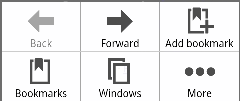
Tap Menu for these options:
Back/Forward: Go back/forward a page.
Add bookmark: Bookmarks the current site.
Bookmarks: See and manage bookmarks.
Windows: Open additional browser windows.
More: brings up the More menu:
_Home: Go to your home page.
_Find on page: Find text on a page.
_Text selection: Allows copy, lookup, and share.
_Page info: Lets you display the information about the website.
_Downloads: See below.
_History: See below.
_Share: See below.

Downloads Menu
You can download photos, videos, documents, and applicaitons from the Internet. First make this setting:
• Tap Home > Menu > Settings > Applications and make sure that Unknown Sources is checked ON.
• To Save attachments (photo, etc.): Long-press attachment > Save to SD card.
• To see downloaded items: From the Internet Browser tap Menu > More > Downloads.
• Long press a downloaded item to open or delete it.

Bookmarks, Most Visited, and History Menu
Long press the Back key to bring up History and the menu below.
]History: Long press the Back key for the menu above.
_Add Bookmark: Tap the white star on the right of an item to bookmark it.
_Long Press a History Item: To open, share, bookmark, copy, or remove.
_Clear History: Tap Menu > Clear History

Bookmarks: Tap the Bookmarks icon in the menu above.
_Long Press a Bookmark: To open, edit, share, copy, create shortcut, or remove.
_Bookmarks Menu: Tap Menu for Sort, Delete, Edit, or change view.
_Delete undeletable bookmarks: Tap Menu > Bookmarks > {bookmark} > Menu > More > History >tap the yellow star.

Most Visited: Tap the heart icon in the menu above.
_Long Press an Item: To open, edit, share, copy, or remove.
_Most Visited Menu: Tap Menu to Clear All or change view.

Settings
Tap Menu > More > Settings for more options than you can imagine.
Set Your Home Page: Default, Current page, or set page
Mobile View: ON shows mobile version of a page if available
Text Size: Set your font size
Default zoom: Set your default zoom

Zoom
Even today, mobile versions of websites may be very limited. Android allows you to browse regular site with ease. When you zoom in to be able to better read text, Android "re-flows" and "word-wraps" the text so that nothing is cut off. Also note that there are not top or bottom notification bars taking precious screen space.

Downloading Apps From the Web
Before you can download applications from the Web, you must first enable downloading from the device settings:
• Tap Home > Menu > Settings >Applicaitons > Unknown sources {checked}
If this helped you, please click ↓
Attached Images
File Type: jpg Folder-Organizer-Tools-Folder.jpg (11.7 KB, 286 views)
File Type: jpg Folder-Organizer-4 x 6 icons-reference.jpg (13.4 KB, 260 views)
File Type: jpg folderorganizer-main-screen.jpg (11.5 KB, 258 views)
File Type: jpg Folder-Organizer-Main-Screen-Menus.jpg (12.6 KB, 5592 views)
File Type: jpg Browser-History-Bookmarks-Favorits-Menu.jpg (19.4 KB, 33661 views)
File Type: png Google-Search-Menu-thumb.png (3.6 KB, 20411 views)
Last edited by milominderbinder; 12-01-2011 at 05:54 PM.
    Thread Author   #6  
Old 09-01-2010, 01:12 PM
AC Forums Adviser
 
Posts: 2,332
Join Date: May 2010
Thanked 1,183 Times in 254 Posts
Likes Received: 318
Activity: 4/20
Android Search lets you find apps, people, email, music, messages, and more on your phone or the Internet. You can just type or say what you want but first you need the latest [Only registered users can view links. ] and Google [Only registered users can view links. ] apps from the Android Market.

Search
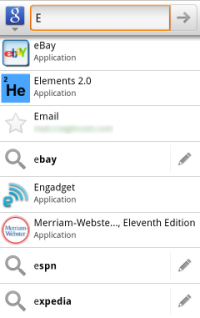
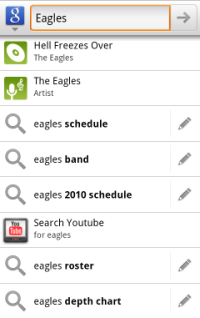
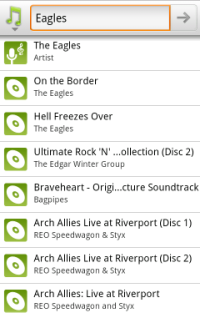
Tap Search Google Search and then start typing "ma" to find Mail, Maps, Mark, or Mary. Type "123 Main" to map that address or get directions. Say you want to listen to The Eagles. As you type it starts guessing what you want on your phone and Internet.


As you type Android starts predicting. Type more to narrow the search.

• Press the Microphone to use Voice Search instead (see below).

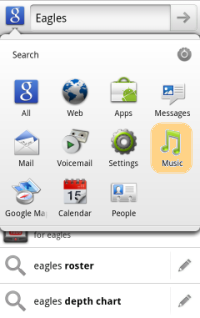
Tap the blue Google button to narrow your search. To see only music, tap Music (highlighted in orange below). It already shows The Eagles and guessed at similar music as well. Tap something to play it.


Search Options
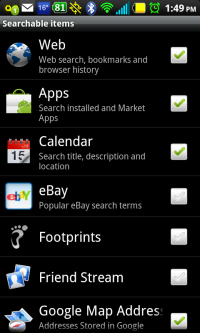
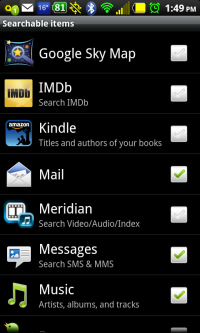
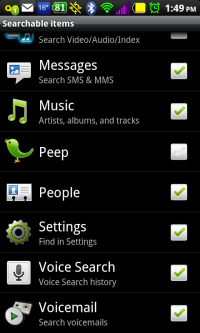
To set what is included, tap Search > then the Settings icon at the top right. (In Ice Cream Sandwich, Tap Google > Menu > Search Settings > Google Search). Then check what you want included in searches including Web, Apps, Contacts, Music, etc.


Choose Searchable Items

Voice Search
Since 2008, Voice Search has let you just talk as well. (Typing while driving is often illegal.) First, download [Only registered users can view links. ] and Google [Only registered users can view links. ] from the Android Market if you haven't already. Then setup: Tap Home > Menu > Settings > Voice Input & Output > Voice Recognizer > Personalized recognition ON so Google Voice can learn how you speak. To use: Tap Search then tap the Microphone button (highlighted in yellow below).

Voice Actions
Vlingo and [Only registered users can view links. ] let you also say commands. Listen to how naturally he is speaking in the [Only registered users can view links. ]. Also see: [Only registered users can view links. ].

Long press Search and clearly say your command or message such as:
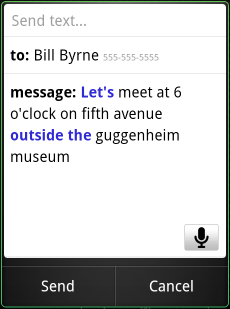
- • text Bill Byrne let's meet at 6 o'clock on fifth avenue outside the guggenheim museum (See screenshot below.)
- • listen to Jimmy Buffet
- • call John Chase at home
- • email Ted McKee Confirming our meeting with John at 1 PM
- • note to self Find paperwork for John
- • navigate to Olive Garden in [town]
- • go to wikipedia

Say "Period", "Question Mark" or "Exclamation Point" to put in punctuation. The words highlighted in blue are ones it was not sure about. Tap a blue word and it will give you other options. Speak slowly and clearly.

Vlingo
Many feel that Vlingo is even better. Vlingo converts your speech into text and commands such as "Text Joe: Leaving now" or "“What does poison ivy look like?” Vlingos learns how your speak as you use it. The SafeReader feature can read your texts and emails aloud to you. See the Use Vlingo for Expanded Voice Commands tutorial.
Attached Images
File Type: png Search-Settings-2.png (36.2 KB, 31724 views)
File Type: png Search-Settings-3.png (34.8 KB, 31645 views)
File Type: png Search-Settings-4.png (32.8 KB, 307 views)
File Type: png Just-Type-1.png (24.2 KB, 31634 views)
File Type: png Just-Type-2.png (24.7 KB, 31645 views)
File Type: png Just-Type-4.png (32.2 KB, 31602 views)
File Type: png Just-Type-3b.png (31.6 KB, 38670 views)
File Type: png Just-Type-0.png (4.8 KB, 31514 views)
File Type: png voice-actions-send-text-thumb.png (15.8 KB, 20295 views)
File Type: png Voice-Search.png (1.6 KB, 16119 views)

Last edited by milominderbinder; 12-27-2011 at 01:16 PM.
    Thread Author   #7  
Old 09-01-2010, 01:13 PM
AC Forums Adviser
 
Posts: 2,332
Join Date: May 2010
Thanked 1,183 Times in 254 Posts
Likes Received: 318
Activity: 4/20
Email apps like [Only registered users can view links. ] add many features beyond the stock email apps. Corporate users: check out [Only registered users can view links. ] ([Only registered users can view links. ]) or [Only registered users can view links. ] ([Only registered users can view links. ]). Here are some standard features. Not all Android phones have all features. See the Gmail section for those settings.

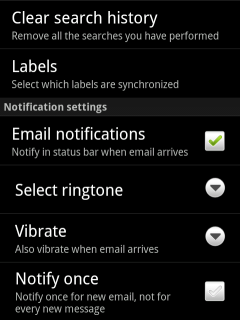
Notification Lights, Sounds and Vibration
• Basic notification sound: Tap Home > Menu > Settings > Sound > Notification.
[Only registered users can view links. ] let's you adjust sounds all at once including Notifications: Tap Volume control or for Ringer for Phone ringer.
Executive Assistant or [Only registered users can view links. ] lets you set repeating LED, vibrations, and sound notifications. (free, [Only registered users can view links. ])

Email Basics
Tap the Mail application icon to see a list of emails.
- • Reply: Tap an email to open it then Reply or Reply All.
- • Forward: Tap an email to open it then tap Menu > Forward.
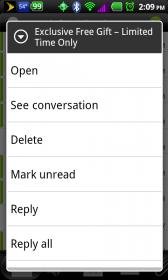
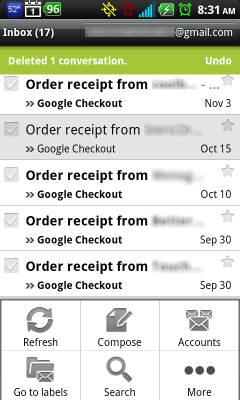
- • Tap Menu to forward, delete, see conversation, or mark unread.
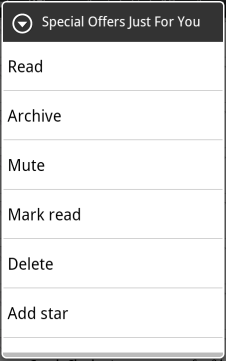
- • Long press an email item to open delete, reply, reply all, etc.
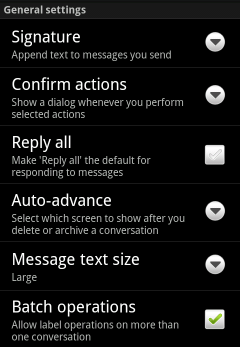
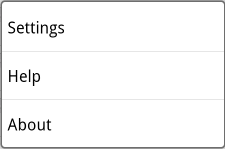
- • Font size, signature, etc.: Tap Menu > More > Settings > General Settings
- • Your default signature may be an ad. Why not change it to something like your name?
- • Save attachment (photo, etc.) Long-press attachment > Save to SD card.

Send & Receive Settings
To set Send & Receive Settings: Tap Menu > More > Settings > Send & Receive Settings
- • Set download frequency to be less often to save battery.
- • If your phone shares email with your office or home computer you probably want to set "Delete mail on server" to Off.
- • Always BBC me will send you a blind carbon copy.
- • Reply with original text lets others know what you are replying about.

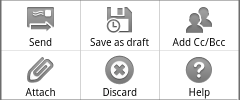
Sending Email
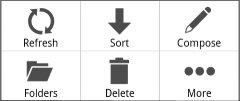
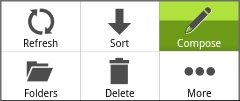
- • Compose a new email: Tap Menu > Compose (highlighted in green below)
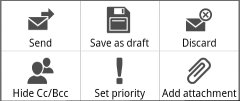
- • Add an attachment to an email you are composing: Tap Menu > Add attachment
- • Send your location as a Google Map link: Tap Menu > Add attachment > Location > Find on map > Done > Maps link
- • Add an email address to your contacts: press the email address and save it.
- • Press space twice to automatically place a period after the last typed letter.

Group Email
• You can send an email to a Gmail contact group: Tap Email > Menu > Compose > Tap the person icon next to the To field at the top then <Groups>.
• You can send an email to several people at once, just keep adding contacts in the To field.

Speech to Text
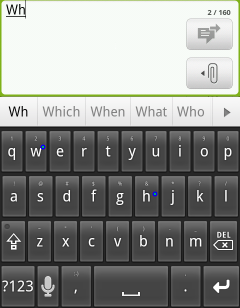
You can use voice to text to dictate your email: While composing, click the microphone icon on the onscreen keyboard. Say your message. When you are done you can edit as normal text. Keyboards like [Only registered users can view links. ] offer more Speech to Text options.

Delete
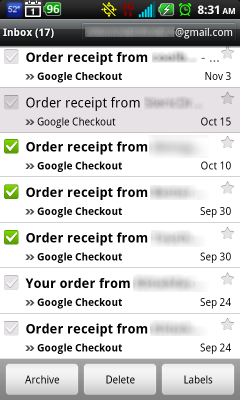
- • To delete one email, tap the email then tap Menu > Delete -or- • Long-press an email listing then tap delete
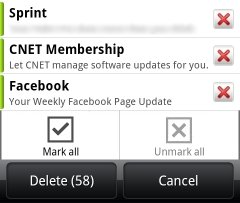
- • To delete multiple emails in a folder tap Menu > Delete > Check the emails > Delete
- • HTC Phones: To delete all emails in a folder tap Menu > Delete > Menu > Mark All > Delete

Sort and Search
- • Emails are sorted by most recent date first but you can sort them any way you like: Tap Menu > Sort
- • Search Email: While in Email tap Search -or- Home > Search and tap the blue G button for Email only.

Folders
- • To see Trash, Sent, Drafts, or Outbox folders: Tap Menu > Folders > chose a folder
- • To move emails to a different folder: Tap Menu > More > Move to > check emails to move > Move to

Trash
To save you from accidentally deleting an email, deleted emails are actually just moved to the Trash folder.
- • To delete all emails in a folder tap Menu > Delete > Menu > Mark All > Delete

Other Email Tips and Tricks
Executive Assistant and [Only registered users can view links. ] let you set repeating LED, vibrations, and sound notifications for email, text, etc.
• Also see: Add a Second Gmail Account, Push multiple email accounts to Gmail, Configuring Yahoo Mail
• Gmail Signature: Tap Menu > More > Settings > Signature.
Attached Images
File Type: jpg 1-Email-Listing-Menu.jpg (11.9 KB, 32916 views)
File Type: jpg 5-Email-Listing-Options-Menu.jpg (8.7 KB, 32858 views)
File Type: jpg 2-Email-Compose.jpg (13.4 KB, 32840 views)
File Type: jpg 3-Email-Compose-Menu.jpg (14.5 KB, 32841 views)
File Type: jpg 7-Email-Delete-List2.jpg (30.0 KB, 32895 views)

Last edited by milominderbinder; 12-24-2011 at 03:35 PM.
    Thread Author   #8  
Old 09-01-2010, 01:14 PM
AC Forums Adviser
 
Posts: 2,332
Join Date: May 2010
Thanked 1,183 Times in 254 Posts
Likes Received: 318
Activity: 4/20
While other phone apps are available on the Android Market, here are some features in the standard Phone app on most Android phones.

Make a Call any Way You Like
You have a lot of ways to make a call.
• Press the Phone icon and type the number.
• Tap the Contact (or People) icon and tap a person and then tap the phone number you want to dial.
• From the Web, an Email, or a text message, just tap the phone number and press Call.

Notification Lights, Sounds and Vibration
• Phone ringtone: Tap Phone > Settings > Sound > Phone ringtone.
[Only registered users can view links. ] let's you adjust sounds all at once including Notifications: Tap Volume control or for Ringer for Phone ringer.
Executive Assistant or [Only registered users can view links. ] lets you set repeating LED, vibrations, and sound notifications.

Phone Basics
Tap the Phone application icon for a dialpad and your phone history.
• Start typing a name or number using the keypad to look it up and call.
• Long press a phone history item to View, Edit, Send text, Add ot Favorite, or Delete.
• Tap Menu for Contact (or People), Call History, Speed Dial, Phone Settings, and Tips.

Voice Dial
Once you try Voice Dialing, it is hard to go back to typing numbers or names again.
• Tap the Voice Dial app or long press Search
• Say something like: "Call John Doe on Mobile" - "Call Voicemail" - "Dial "800-555-1234" - "Redial"

Visual Voicemail
See: Visual Voicemail

Speed Dial
• Almost all Android phones but the Nexus and Nexus S have speed dial. Speed dial let's you long press a number on the phone dial pad to dial a contact.
• To set up a Speed dial: Tap Home > Phone > Menu . Speed dial > Add new. Choose a contact phone and assign a Speed dial number.
• To call using Speed dial: Tap Home > Phone and long press their assigned number. You can have up to nine speed dial numbers.
Apps like [Only registered users can view links. ] & [Only registered users can view links. ] can let you have speed Dial on a Nexus S.

Smart Dial
• Most Androids let you "T9" [Only registered users can view links. ] by typing a name such as Brown as: 2 for B, 7 for R to see names beginning "Br".
• Most also let you the first few numbers to see a list of numbers For instance typing "202456" will find 202-456-1414.
[Only registered users can view links. ] (free) lets you dial the middle of a name or number. For 202-456-1414, you can dial "456" or "1414". ([Only registered users can view links. ])
[Only registered users can view links. ] (free) lets you dial their initals for instance dial 2 for B, 6 for O for Barack Obama. ([Only registered users can view links. ])
[Only registered users can view links. ] & [Only registered users can view links. ] can seach contacts for "Pen" for contacts on Pennsylvania Ave or "Wash" for Washington.
[Only registered users can view links. ] (free) is another popular dialer/comtacts app but lacks some of the features above. ([Only registered users can view links. ])
• The Nexus S lacks Smart Dial. Apps like [Only registered users can view links. ] & [Only registered users can view links. ] can let you have Smart Dial on a Nexus S.

Speed Dial Favorites Widgets
- • Picture Speed Dial Widgets show several contact photos on-screen and you can define each to call, text, or email the person.
- • You phone may have a Speed Dial Widget or consider: [Only registered users can view links. ] ([Only registered users can view links. ]), [Only registered users can view links. ] ([Only registered users can view links. ]), [Only registered users can view links. ], or [Only registered users can view links. ].

Rejecting a Call and Sending a Text Message
Say you need to tell a caller that you can't take their call right now. Your Android phone can automatically send a default text message to the caller! First, set up your default text message by tapping Phone > Menu > Phone Settings > Edit default message. You might enter a generic message like, "Can't talk now." and press OK.

Now when you can't take the call you can automatically send that text:
- • When the phone rings, tap menu > Send Message

Set a special ringtone for a contact
• Tap Home > All Apps > Contact (or People) > {contact} > {Ringtone}

Send Certain People Staight to Voicemail
You can choose certain people to always go straight to voicemail. The caller hears one ring while you do not hear a ring, just a missed or voicemail alert. Here is how to setup someone for "Send to voicemail".
• Tap Contact (or People) > {contact name} > Send to voicemail

Other Phone Tips and Tricks
• Force Roam only - Use [Only registered users can view links. ]
Executive Assistant and [Only registered users can view links. ] let you set repeating LED, vibrations, and sound notifications for missed calls, etc.
If this helped you, please click ↓
Attached Images
File Type: jpg Notifications.jpg (26.3 KB, 309 views)

Last edited by milominderbinder; 12-24-2011 at 03:36 PM.
    Thread Author   #9  
Old 09-01-2010, 01:23 PM
AC Forums Adviser
 
Posts: 2,332
Join Date: May 2010
Thanked 1,183 Times in 254 Posts
Likes Received: 318
Activity: 4/20
You can set your Messages app to work just the way you like plus it has dozens of great features. While [Only registered users can view links. ] like [Only registered users can view links. ] and [Only registered users can view links. ] add even more features, here are some common features.

Notification Lights, Sounds and Vibration
• Text Messaging sounds: Tap Messages> Menu > Settings > Notification sound.
[Only registered users can view links. ] let's you adjust sounds all at once including Notifications: Tap Volume control or for Ringer for Phone ringer.
Executive Assistant or [Only registered users can view links. ] lets you set repeating LED, vibrations, and sound notifications.

Send a text
To open the Messages app, press the Messages icon or Tap Home > Menu > All Apps > Messages.
• To start a new conversation, Tap New Message and type their name or tap the Contacts icon to find a contact.
• To cut, copy and paste, long press on the text you have typed. See: Cut, Copy, Paste, and Share.
• If you type over 160 character, your message will split into two automatically (except the Nexus S).

Receive a message
When you get a text, a Notification will appear and your Notification LED will flash (except the Nexus S).
• Drap down the Notification bar and tap the notification. See Notifications.

Messaging Basics
Tap the Messages application icon to see a list of text message "conversations." While looking at the list of conversations...
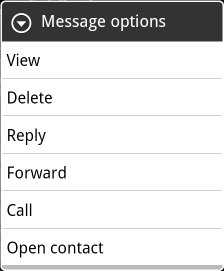
• Long press a message for Message Options incuding View, Delete, Reply, Forward, Call or Open Contact. (If you forward, you will be able to edit the content.)
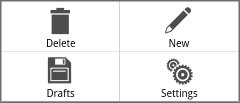
• From the message listing, Tap Menu to Delete, Compose, see Drafts, or change Settings.
• Tap a message to Reply to or tap New message. While composing your message...
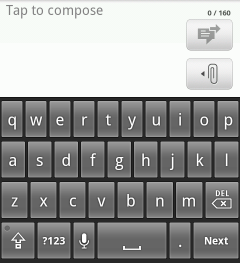
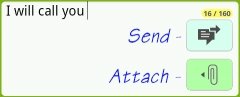
• Tap the Attach button (highlighted in green below) to attach music, videos, or documents.
• Save attachment (photo, etc.) Long-press attachment > Save to SD card.
• Tap the Send (highlighted in blue) button when you are ready to send.
• A counter (highlighted in yellow) shows how many characters you have used for this message.
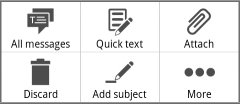
• While composing your message, Tap Menu for Quick text and other options.


Text Sending Tricks
• Compose a text: Tap Menu > Compose
• Add an attachment: Tap Menu > Attachment (Paperclip)
• Text Delivery Confirmation - Menu > Settings to a notification icon
• Add to your contacts: press their photo and tap the People icon.
• Press space twice to automatically place a period after the last typed letter on many keyboards.

Group Text
• You can send a text to a Gmail contact group: Tap The person icon next to the To field at the top then <Groups>.
• You can send an email to several people at once, just keep adding contacts in the To field.
• Group Texting (like a texting conference call or group chat) can be done with an app like [Only registered users can view links. ],

Quick Text
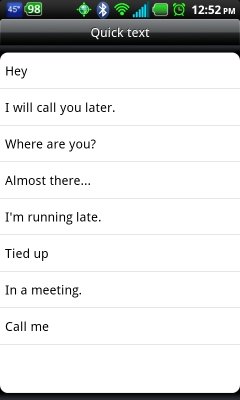
Your phone may have preset Quick Text messages to make texting faster.
• To insert a Quick Text while typing a text, Tap Menu > Quick Text and choose your text.
• To edit the list of Quick Text, tap Menu > Edit and tap the Quick Text to edit.

General Settings
• To set notification, vibrate, etc. in the Messages app: Tap Menu > Settings

Keep Your Messages Cleaned Out To Keep Your Phone Running Well
If you have too many messages stored on your phone, your Messages app and your whole phone may become sluggish as it constantly sorts through them all. You can set the Messages app to automatically delete old messages. Tap Menu > Settings > Delete Old Message ON and set your Text Message Limit to 100 messages per conversation or whatever you like. Some set this to 0 so that there are no old messages to be found.

Manually Delete Messages
• To delete one message, long press then tap delete
• To lock a message so that it is not deleted, press for 1 second > Lock
• To delete all messages in a conversation, tap Menu > Delete > OK

Speech to Text
You can use voice to text to dictate your email: While composing, click the microphone icon on the onscreen keyboard. Say your message. When you are done you can edit as normal text. Keyboards like [Only registered users can view links. ] offer more Speech to Text options.

Forward
To forward a message, long-press the message and Tap Forward. Enter the recipient, add your note and edit the content as needed, and tap the Send icon.

More Information
To see more informaiton about the message, long-press the message and Tap View message details. The phone number and date and time sent will be displayed.

Drafts
• To see Drafts: Tap Menu > Drafts

Other Messaging Tips and Tricks
• Get Executive Assistant for repeating text, missed call, calendar, and email reminders. Sets LED and vibration patterns too.
Attached Images
File Type: jpg Messages-Main-Menu.jpg (9.1 KB, 32850 views)
File Type: jpg Messages-Compose-Menu.jpg (13.0 KB, 32698 views)
File Type: jpg Messages-Message-typing2.jpg (15.6 KB, 32814 views)
File Type: jpg Message-Options.jpg (19.1 KB, 32839 views)
File Type: jpg Messages-Quick-Text.jpg (31.9 KB, 32812 views)

Last edited by milominderbinder; 12-24-2011 at 03:37 PM.
    Thread Author   #10  
Old 09-01-2010, 02:02 PM
AC Forums Adviser
 
Posts: 2,332
Join Date: May 2010
Thanked 1,183 Times in 254 Posts
Likes Received: 318
Activity: 4/20
Note that some phones like the Nexus S do not have Visual Voicemail.

Voicemail Basics
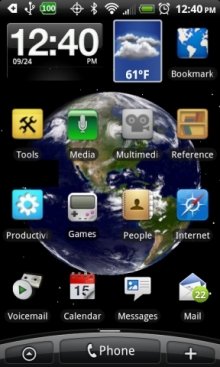
Your Voicemail icon should be on your main homescreen. If not, press and hold in an empty space then tap Appications and then Voicemail. Now you are never more than two taps away from Voicemail: Tap Home > Voicemail.

Tap your Voicemail icon. The first time you use Voicemail, you need to Personalize your passcode, name, and greeting.

A Voicemail waiting icon will show in the top status bar if you have unheard messages.

Visual Voicemail
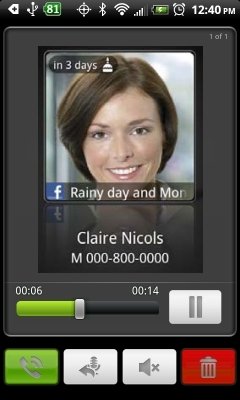
Most Android phones come with Visual Voicemail. Visual Voicemail shows you the persons photo from your contacts when you play their message. In addition, most Android phones will also update the contacts photo to show their latest Facebook photo. If yours did not, try [Only registered users can view links. ], [Only registered users can view links. ], or [Only registered users can view links. ]. Each is a little different but the HTC EVO example below will give the typical features.

Playing a Visual Voicemail message is like playing a song.
• Tap Play [►] or Pause [ ll ] to start and stop playback.
• Move the slider to the part you want to hear again.
Call Back: Tap the Phone icon
Delete: Tap the trash can
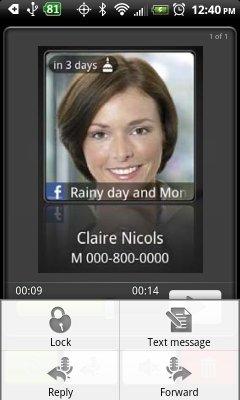
• Tap Menu for more options:
_ • Tap Lock to prevent deleting this message accidentally.
_Text Back: Tap Text Message
_Voicemail Back:Tap Reply
_Voicemail Forwarding: Tap Forward to send this voicemail as an email wav file attachment
Save: Email the wav file to yourself. Open the email and Save to SDcard.
If this helped you, please click ↓
Attached Images
File Type: jpg better-keyboard-show-touch-points-bigger.JPG (30.4 KB, 710 views)
File Type: jpg Voicemail-Waiting-049.jpg (864 Bytes, 50036 views)
File Type: jpg Visual-Voicemail-Thumb2.jpg (56.2 KB, 50516 views)
File Type: jpg Visual-Voicemail-Menu-Thumb2.jpg (55.1 KB, 13145 views)
File Type: jpg MainScreen-Earth-Small.jpg (65.3 KB, 19664 views)

Last edited by milominderbinder; 12-03-2011 at 12:26 PM.
Reply

Thread Tools Search this Thread
Search this Thread:

Advanced Search