Post #1 = Index Post #2 = FAQ Post #3 = Gingersnap one click root (Retired Semi Auto root) (Beginner) Post #4 = ADB rooting (Beginner-Intermediate) Post #5 = How to root using a Mac (Beginner-Intermediate) Post #6 = Removing apps once rooted (Coming soon) Post #7 = How to Unroot Post #8 = Credits
[warn]The methods of rooting your Android device as described in the article herein is solely for enthusiasts and not for the faint of heart.
Android Central, Android Police, Team AndIRC and myself disclaim all liability for any harm that may befall your device, including, but not limited to: bricked phones, voided manufacturer warranties, exploding batteries, etc.
[/warn]
A: Root, is super user access of your phones operating system. Think of your phone as a desktop computer. Right now you are logged on as a guest account. you can browse things and use applications but if you really want to change anything in your system you can't. What gaining root does is it gives you superuser permission to alter files that you could not before; again thinking of it as a computer you now have an Administrator account.
Q:Does rooting void my warranty?
INFORMATION:
A:Yes and no. If you walk into your carriers store with a phone that has Root access and they actually check it they have the right to say this phone was tampered with. But for those of you in the know, there are methods to unroot your phone first.
Q: Does rooting slow down my phone or drain battery.
INFORMATION:
A: NO, root is not an application or a running process, gaining root does not do anything but give you permissions that you normally would not have. Basically all you did during the rooting process was move files around. Its what you do with this new found permission that changes things. But as far as just rooting it does not make a difference.
Q: Will i lose any apps or data during the rooting process?
INFORMATION:
A: No, for the same reason as above. Rooting is basically just moving some files around. Of course there is always a risk of something happening in any process. I would say chances are of causing serious problems is slim to non. Its what you do with this new found permission that changes things. But as far as just rooting it does not make a difference.
Q: I lost root during an update, am i doomed?
INFORMATION:
A: No, what happend was the file containing your super user access was over written. Just re-attempt gaining root and you will be fine.
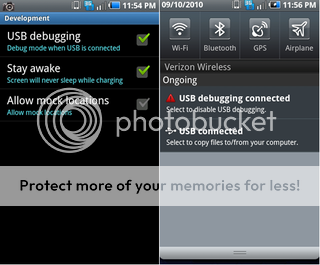
1. Download and Install Samsung Drivers [Only registered users can view links. ] [Only registered users can view links. ] 2. Go to Settings > Applications > Developement > Enable Debugging, then connect your phone to your PC, allow 2-3 minutes to configure drivers
[WARN]Gingersnap (along with all other Android modifications) is experimental software and while I have made this as safe as possible, differences in operating environments and natural disasters can cause your device to become unusable. Please make sure you understand this important fact before downloading.
Disclaimer: Neither myself, Android Central or any other member of Android Central are responsible for any disasters that occur as a result of any hack or modification you perform on your device. Your use of this application is at your own risk![/WARN]
With that out of the way, I'd like to introduce you to the Gingersnap Root Utility. Gingersnap is a one-click root utility, much like SuperOneClick or Universal Androot.
The nitty gritty: Gingersnap uses a modified version of the famous [Only registered users can view links. ] to automatically root your Android-powered device and installs the necessary files to maintain a permanent root status.
Pre-use Requirements: 1) You need the [Only registered users can view links. ]. Not the Client Profile, the full .NET 4 Framework.
2) For some reason you need the [Only registered users can view links. ] redistributable installed. Don't ask me why.
3) You need proper drivers for the your phone. Your video card doesn't work without drivers and neither will your phone.
4) Before running this Utility please make sure your phone is in debugging mode
Instructions:
Download and unzip Gingersnap-V1.2.zip to anyplace on your computer
Connect your phone to computer in debugging mode
Open Gingersnap-V1.2 folder
Double click Gingersnap applications icon
press GO , sit back and relax
Credits:
Gingersnap Utility: drewwalton19216801
GingerBreak exploit: [Only registered users can view links. ] Autoroot shell script (com.sh): Droidxcon, YAY ME! MAJOR thanks to jondevere for being drewwalton19216801's personal guinea pig!
Think you're ready? The file is attached to this post.
Source Code:
The modified GingerBreak source code is attached to this post. The filename is gingerbreak-mod-gs-src.zip
Directions: (Assuming you followed preparations from Post #2)
Download Infuse_root.zip:
With your phone in debugging mode set to stay awake 1. Extract downloaded Infuse_root.zip file directly to your C:\ Drive
Quote:
After placing Infuse_root.zip folder to your C: drive it should look like this in your windows explorer. This will allow the path C:\Infuse_root to be found from command prompt later in this tutorial
2. Now go to your start button on your menu bar,in the run field or search field depending on your version of windows, type CMD and hit enter. The command box will present itself. From here on out just copy and paste the commands i will provide below. To paste in the command box you must right click on the mouse and select paste. Do not paste BOLD text below those are just for info.
Commands are as follows:
Code:
cd C:\Infuse_root
adb devices
It will state
"List of devices attached
I500******* device" (number is just an example)
If you dont see this you are not connected
The adb shell command will not put you in the phones internal command terminal. This is represented with "$" prompt. You will now execute the GingerBreak exploit. This make take serveral minutes.
Code:
/data/local/GingerBreak
After entering the above command Gingerbreak will do its thing. A successful exploit will end with this,"[!] dance forever my only one"
If it ends in anything else or if it hangs for more than 5 minutes pull your battery and attempt to root again.
After exploit is complete you will have a command prompt that looks like this "#". That represents root access. You will now excute shell script then reboot your phone.
[WARN]I do not own a Mac so i am not the best person to ask questions about set up but post questions and i will have people that know much more than me about Mac devices to help answer them.[/WARN]
It's extremely important that you download the necessary files to the proper place.
Download the following file to your Macintosh HD root folder: [Only registered users can view links. ]
Quote:
Using Safari: click link to open Multiupload page --> right click the direct download button > download linked file as > click macintosh HD > click save
Open Finder - on your Mac - and double click the "android-sdk-mac_x86.zip" in your Macintosh HD root folder to extract.
Quote:
Using Safari downloads window: right click android-sdk-mac_x86.zip > click show in finder > double-click android-sdk-mac_x86.zip
FYI -- Regarding Mac Disk Errors:
At various points -- throughout this procedure -- your Mac may display a disk error message like the one below. You can safely click Ignore when you see "The disk you have ejected was not readable by this computer" and click OK when you see "This disk was not ejected properly."
Quote:
Do the following on your phone:
If your phone is plugged into your Mac – unplug it now.
Then hit the menu capacitive button > settings > applications > development > check USB debugging > then click Ok.
Plug the phone into your computer (you will leave it plugged in for the duration of this procedure).
Opening Terminal on the Mac:
Open applications > go to utilities > then open terminal.
Enlarge the terminal window for easier viewing.
Syntax notes:
You do not type the $ before any of the commands below. The $ represents the command prompt and is shown for illustration purposes only.
To avoid errors, for more complex commands, I recommended copying from this post to the terminal. All you need to do is 1) select the line in this window 2) hit command-c and then 3) hit command-v in terminal to paste it.
You DO need to type the period in front of each command. For example: the period here: ./adb devices is part of the command. It will not work without it. If you copy and paste lines, as I recommend, it is important to get the period during the selection.
Unless otherwise specified, you should never see an error after entering a command. If you did, double-check that you just entered the correct thing.
For the more curious, I will give you a complete rundown of what each command does in post #2.
Please do not PM me If something doesn't work right, please select, copy, and paste the last several lines of your terminal session into a new post in this thread.
Enter or copy/paste the following ./adb (without the $) lines into terminal:
Code:
$ cd ..
$ cd ..
$ cd and*
$ cd tools
$ ./adb devices
[note] Terminal should return a result that displays your device (the name will vary from the one shown). If it doesn't show as attached, you will not be able to continue. [/note]
The adb shell command will not put you in the phones internal command terminal. This is represented with "$" prompt. You will now execute the GingerBreak exploit. This make take serveral minutes.
Code:
/data/local/GingerBreak
After entering the above command Gingerbreak will do its thing. A successful exploit will end with this,"[!] dance forever my only one"
If it ends in anything else or if it hangs for more than 5 minutes pull your battery and attempt to root again.
After exploit is complete you will have a command prompt that looks like this "#". That represents root access. You will now excute shell script then reboot your phone.
Code:
/data/local/com.sh
exit
exit
$ ./adb reboot
Your phone will now reboot. Congrats Enjoy your rooted device
[TIP]check app drawer to see if superuser app is installed,if it is you are rooted[/TIP]
UnzipStart_Unroot.zip folder Place anywhere on your computer
Place your phone in debugging mode
Connect phone to PC
Open Start_Unroot folder Double Click Start_Unroot.bat
When the command window prompts you to enter adb shell , press any key to continue
[tip]To copy and paste into the command window, simply copy the command, then right click in the command window and a drop down menu will appear. Then select the option Paste[/tip]
Then at the "$" prompt enter the following commands
Code:
su
After entering this command look at your phone screen right away Superuser app may ask you to allow or deny root permission , select allow . Once you receive "#" prompt you may proceed. if you get permission denied , pull your battery and try again