- 06-19-2011, 05:42 PM
Thread Author #1
- 06-19-2011, 05:43 PM
Thread Author #2
FAQ & Preperation
FAQ
Q: What is this?
Q: What is working what is not?
A: Quoted from p3droid :"Tetris force closes
Google Maps is not installed (not sure if that is an issue or not)
Some market apps do not show as this is an unofficial release."
Q: Will this wipe my phone of all data?
A: Yes, this will wipe your phone completely and rewrite the partitions to a stock (the way you bought it) condition.
Q: Will this wipe my SD card?
A: Yes, usually Odin flashes do not but in this case it is possible. Please remove your SDcard before flashing
Q: Does this void my warranty?
A:No in fact if you had a software change that would have have voided your warranty before this will bring you to a state that they will have never known an alteration was made
Q: I am currently running the latest software update, will this return me to this state?
A: No this will bring you back to Gingerbread 2.3 Firmware build EC09. you will need to flash EB01 to return to stock
Q: Will i lose any apps or data during this process?
A: You absolutely will, this is a full wipe of your system. But please refer to Post #2 where we will give you steps to take to back up your apps and data. Post #6 after you are done with the wipe and restore will give you the steps to restore the apps and data.
Q: What is Odin?
A: A Flashing program to download Kernels, firmware to Samsung mobile phones. Also used in recovering failed flashes, bricked phones or doing full system wipes and restores.
--------------------------------------------------------------------------
Preparations
1. Download and Install Samsung Drivers
64bit: Drivers
or
32bit: Drivers
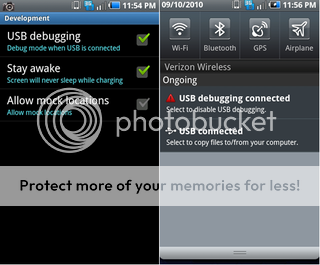
2. Go to Settings > Applications > Developement > Enable Debugging, then connect your phone to your PC, allow 2-3 minutes to configure drivers

3.Download Odin Application
4.Download Gingerbread EC09 Stock Image
5.Disable any running antivirus (causes an interupt durning process resulting in bad flash)
6.Make sure to plug USB cable in the back of the computer,for most reliable connectionLast edited by Paul627g; 02-06-2012 at 01:51 AM. Reason: Updated Odin link
Thanked by 7: - 06-19-2011, 05:44 PM
Thread Author #3
Backup Contacts
Backup to Gmail account (Recommended)
Step 1. From the Home screen, touch the menu button
Step 2. Touch settings
Step 3. Touch accounts & sync
Step 4. Touch the Gmail account of your choice under Manage accounts
Step 5. Touch Sync contacts
Export to SD card (Recommended)
Step 1. From the Home screen, touch contacts
Step 2. Touch menu
Step 3. Touch Import/Export
Step 4. Touch Export to SD card
Step 5. Touch ok to confirm export
Send namecard via
Step 1. From the Home screen, touch contacts
Step 2. Touch menu
Step 3. Touch Import/Export
Step 4. Touch send namecard via
Step 5. Touch Select all
Step 6. Touch send
Step 7. Touch destination of your choice
Verizon Backup Assistant
Step 1. From the Home screen, touch the menu button
Step 2. Touch settings
Step 3. Touch accounts & sync
Step 4. Follow the prompts to log in to your Backup Assistant account.
Apps and Data
There are many apps available on the market. But i will suggest My Backup Pro if you purchase you can use this without root. It can be found in the Android Market
Thanked by 4: - 06-19-2011, 05:44 PM
Thread Author #4
Instructions to install using odin
PLEASE REMOVE YOUR SD CARD BEFORE FLASHING
1.) If your phone is plugged into your computer, unplug it now.
2.) If your phone is not powered down, power it down now.
3.) Remove battery from phone.
4.) Launch ODIN on PC.
5.) Plug USB cable into phone.
6.) Plug your Fascinate into the PC via USB cable.
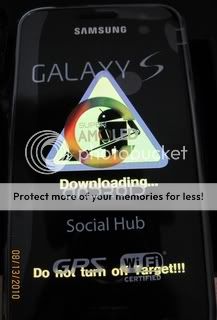
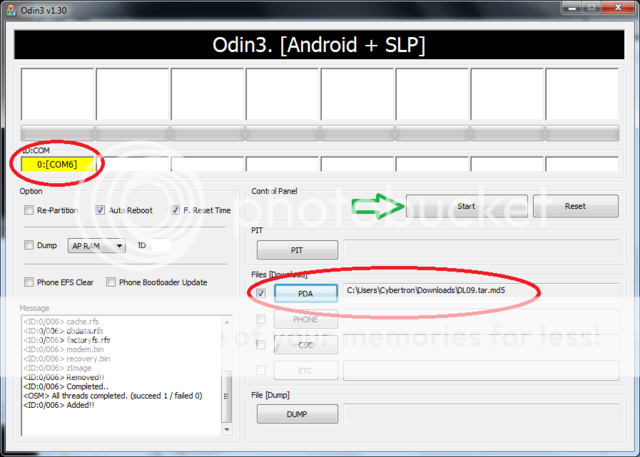
7.) Press and hold the volume-down key until you see a gigantic yellow triangle and your phone will be in download mode.(Please see 2nd picture in post #5)You can now release the volume key. At this point you will see a yellow com port in the upper left hand corner of the Odin applicate. .(Please see 3rd picture in post #5)
8.) Click on the PDA button in ODIN
Triple check that you pushed the PDA button. Do NOT click the Phone button prior to continuing to step 13. If you choose Phone, you will have bought your Fascinate a one-way ticket to hell.
9.) Choose the SCH-I500_VZW_EC09_GINGERBREAD_DEBUG_REL.tar.md5
file you downloaded in step 2 above & click the Start button.(this should take approx 3 to 6mins)
10.) Phone will power down when finished.
11.) Remove USB cable.
12.) Reinsert battery.
13.) Power phone and wait to boot approx 4mins
Congrats you are wiped clean and have Leaked Gingerbread.Last edited by DroidXcon; 06-25-2011 at 05:39 PM.
- 06-19-2011, 05:45 PM
Thread Author #5
PLEASE REMOVE YOUR SD CARD BEFORE FLASHING
Once odin is downloaded open it, its an executable file so when you open it you will see the following : (File used in picture is just an example)

Once this is up, do the following
-Remove the battery from your Device
-Plug in the USB cord
-Hold down the Volume Down button until you see a big bright triangle on your screen , underneath it will say Downloading and beneath that it will say Do not turn off target

At this point you will see one of the boxes in the corner turn yellow, letting you know there is a connection, it will look like this

after you are connected you want to hit the PDA button, NEVER PHONE, phone will erase your modem and you will have trouble connecting after that at all.

when you click the PDA button a pop up will appear and you will need to select the file you would like to flash and then click open

now you will see the file appear in the PDA window ,, with connection made and the file in the PDA window, you may now hit Start

Once you hit start this process Should take approx. 5 mins if you are returning to stock . shouldnt take any less time than that and not much more. So dont start freaking out at min 2...(wait till min 7) lol
If you are flashing a Clockworkmod file it should take approx 7seconds.
once it is completed you should see the following window:

Once you have reached this screen it is safe to unplug , put your battery in and boot up..Last edited by DroidXcon; 06-25-2011 at 05:39 PM.
Thanked by 6: - 06-19-2011, 05:46 PM
Thread Author #6
Restoring Contacts
Backup to Gmail account (Recommended)
Step 1. From the Home screen, touch the menu button
Step 2. Touch settings
Step 3. Touch accounts & sync
Step 4. Touch the Gmail account of your choice under Manage accounts
Step 5. Touch Sync contacts
Import From SD card (Recommended)
Step 1. From the Home screen, touch contacts
Step 2. Touch menu
Step 3. Touch Import/Export
Step 4. Touch Import From SD card
Verizon Backup Assistant
Step 1. From the Home screen, touch the menu button
Step 2. Touch settings
Step 3. Touch accounts & sync
Step 4. Follow the prompts to log in to your Backup Assistant account.
Apps and Data
There are many apps available on the market. But i will suggest My Backup Pro if you purchase you can use this without root. It can be found in the Android Market
Thanked by 4: - 06-19-2011, 05:48 PM
Thread Author #7
Trouble Shooting
Odin application displays one of the following in message box<OSM> All threads completed. (succeed 0 / failed 0)Resolution<OSM> All threads completed. (succeed 0 / failed 1)
90% of problems associated with Odin are due to communication between phone and computer , it is suggested to go over all the prepartion points in Post#2 of this thread. Other things to try would be.
Change USB ports in the back of the computer
- Make sure you did not forget to remove battery from phone
- make sure Odin is the only application running and antivirus is disabled
- If you are using a laptop make sure its plugged in also find the nearest desktop and try from there
****************************************************************************
After failed flash with odin upon power up the following is depicted on the screen
SOFT BRICK

Resolution
First off DO NOT PANIC. there is a simple solution, just remove the battery , plug the phone into the computer, press and hold volume down and it will enter download mode. Please review all the steps oulined in this thread and try and flash again - 06-19-2011, 05:54 PM
Thread Author #8
- 06-19-2011, 06:33 PM #9
- 06-19-2011, 06:43 PM #10
- 06-19-2011, 07:02 PM #11
- 06-19-2011, 07:08 PM #12
- 06-19-2011, 07:11 PM #13Confucius: “Never use a cannon to kill a fly.” - Take off and nuke it from orbit.. ~~^^~~
- 06-19-2011, 07:12 PM #14
- 06-19-2011, 07:18 PM #15
Rumors maybe true. Official 2.3 may not be that far off.
I know enough to get into trouble, but not enough to get myself out of that trouble. - 06-19-2011, 07:20 PM #16
- 06-19-2011, 07:31 PM #17Confucius: “Never use a cannon to kill a fly.” - Take off and nuke it from orbit.. ~~^^~~
- 06-19-2011, 07:39 PM #18Steve

- 06-19-2011, 08:25 PM #19
- 06-19-2011, 08:36 PM #20
Someone posted over at XDA that the su 2.3.6.1 + busybox 1.19 zip file also works for rooting this GB EC09 ROM.
Shouldn't we treat this world like the Garden of Eden and avoid the apple at all costs?
Sometimes you go to the circus...........Sometimes the circus comes to you.
Instructions on how to flash ROMs, Kernels, Patches, and Mods through clockworkmod recovery, CWM: DroidXcon's CWM Thread
If you add me on Google+, please list your AC username as a nickname so I know who you are. - 06-19-2011, 08:51 PM #21
- 06-19-2011, 09:00 PM #22
- 06-19-2011, 09:06 PM #23Confucius: “Never use a cannon to kill a fly.” - Take off and nuke it from orbit.. ~~^^~~
- 06-19-2011, 09:09 PM #24
- 06-19-2011, 09:22 PM #25


Reply