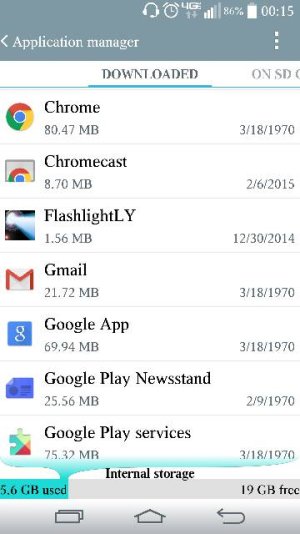
Anyone know what caused this

mrip

Active member
Apr 17, 2013
41
0
0
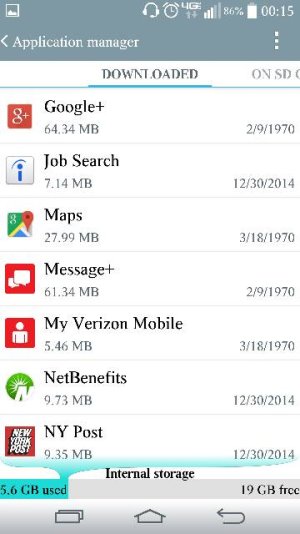
The dates for all Google and Verizon apps have changed.

Posted via the Android Central App
 

Attachments

  • 6269.jpg
    6269.jpg
    33 KB · Views: 88
  • 6267.jpg
    6267.jpg
    33.3 KB · Views: 90
Dates re stored as Unix timestamps, where 0 = 00:00:00, January 1, 1970. I suspect that all the dates got truncated to very small numbers. No idea what could have caused it.
 
That is mysterious. I have seen this happen once to only one of my apps on JellyBean with my old RAZR Maxx. Although that time I saw the date, was puzzled, and when I went back to look at it again 10 minutes later it was back to normal.

You might try and reboot phone into recovery and clear cache. See if that helps.

Clearing the Phone's Cache Partition:

-Turn off the smartphone
-With the device shut down, press and hold the "Volume Up", "Home" and "Power" keys
-After the smartphone vibrates once, release the "Power" key but keep pressing "Volume Up" and "Home"
-At the "Android System Recovery" screen, release all hardware buttons
-From the recovery menu, press "Volume down" to navigate to and highlight "wipe cache partition"
-Press "Power" to select the option
-After the cache partition has been wiped, a "Reboot system now" message / option will be highlighted
-Press "Power" to reboot your smartphone
 
That is mysterious. I have seen this happen once to only one of my apps on JellyBean with my old RAZR Maxx. Although that time I saw the date, was puzzled, and when I went back to look at it again 10 minutes later it was back to normal.

You might try and reboot phone into recovery and clear cache. See if that helps.

Clearing the Phone's Cache Partition:

-Turn off the smartphone
-With the device shut down, press and hold the "Volume Up", "Home" and "Power" keys
-After the smartphone vibrates once, release the "Power" key but keep pressing "Volume Up" and "Home"
-At the "Android System Recovery" screen, release all hardware buttons
-From the recovery menu, press "Volume down" to navigate to and highlight "wipe cache partition"
-Press "Power" to select the option
-After the cache partition has been wiped, a "Reboot system now" message / option will be highlighted
-Press "Power" to reboot your smartphone

I don't know how you hold the "Home" button to do what you described, but this works for my G3.

1. Turn the phone off.
2. Press and hold the VOLUME DOWN KEY and the POWER KEY at the same time.
3. Release the POWER KEY only when the LG logo appears, then immediately press and hold the POWER KEY again.
4. RELEASE ALL KEYS when the Factory hard reset screen is shown.
5. Press the VOLUME DOWN key to scroll to YES, then press the POWER KEY to confirm.
6. Press the VOLUME DOWN key to scroll to YES, then press the POWER KEY to confirm once again.
7. Your device will perform a hard reset.

Not for just for doing a hard reset - you can wipe the cache from here as well.
 
Did the partition wipe still the same. Deleted some Google apps then reinstalled same thing will wait for the update before doing a factory reset. Thanks for the quick response

Posted via the Android Central App
 

Trending Posts

Members online

Forum statistics

Threads
960,612
Messages
6,983,054
Members
3,164,546
Latest member
gerryreed39