- 03-08-2011, 03:43 AM
Thread Author #1
[How to] Install and Use Clockworkmod Recovery w/Screen captures
Post #1 = Index
Post #2 = FAQs
Post #3 = Installing and controling Clockwork
Post #4 = Wiping Data,cache partition, and Dalvik cache
Post #5 = Flashing a zip file (ex.Roms,themes,kernels and apps)
Post #6 = Nandroid Backup and Restore
Post #7 = Fixing Permissions
Post #8 = Wiping Battery Stats
Post #9 = Enable and Disable Voodoo Lagfix
Post#10= Credits
For Mac OS X instructions please visit this thread http://forum.androidcentral.com/veri...s-x-users.htmlLast edited by DroidXcon; 03-14-2011 at 03:41 PM.
Thanked by 19:+ Show/Hide list of the thanked
- 03-08-2011, 04:19 AM
Thread Author #2
- 03-08-2011, 04:20 AM
Thread Author #3
Installing and controling Clockwork
Installing Clockwork:
In this section i will only be discussing CWM ALL and Cwm froyo(not fully fuctional)
DO NOT USE ROM MANAGER, IT IS MORE CONFUSION THAN IT'S WORTH SINCE IT IS NOT FULLY FUNCTIONAL SEE FAQ ABOVE
Red Cwm froyo: requires update.zip on your sdcard to enter,, chances are if have cwm froyo its because you used my odin package. I am not able to use CWM All because it causes problems wiping your phone when you boot up after flashing. Cwm froryo will allow you to flash roms and themes but nandroid backups have problems and you can not use it for Voodo, below i will discuss how to identify and enter cwm froyo.
Red CWM ALL:is fully functional clockwork recovery that does not require update.zip, it will boot into clockwork directly without going through stock recovery.Installation requries Odin, there are other ways but they require much more work and knowledge of adb. But for this tutorial i will only provide instructions for odin
Installing CWM ALL instructions and downloads
Installing with odin:
- Download and intsall the Fascinate drivers found
- Download the ODIN file
- If your phone is plugged into your computer, unplug it now.
- If your phone is not powered down, power it down now.
- Remove battery from phone.
- Launch ODIN on PC.
- Plug USB cable into phone.
- Plug your Fascinate into the PC via USB cable.
- Press and hold the volume-down key.
- You should now see a gigantic yellow triangle and your phone will be in download mode. You can now release the volume key.
- Click on the PDA button in ODIN. Do NOT click the Phone button.
- Choose the file cwm-recovery-ALL.tar which can be downloaded
- When all the above conditions have been met hit the Start button
For those of you who are visual learners like me i have a write up of the above Odin process with pictures HERE
Installing from older versions of clockwork only
- Download CWM flashable zip
- Place on the root of your SD card
- Boot into recovery
- apply sdcard:update.zip
- enter clockwork recovery
- choose install zip from sd
- choose cwm-recovery-ALL.zip
- Reboot your phone
- delete update.zip from root of SD card
- aslo delete recovery-update.zip from clockworkmod folder
Entering clockwork recovery ALL
With the phone off press and hold Volume up+Volume down+Power button.
Samsung logo will flash twice, after the second one let go of the buttons.
This will lead you into clockwork.
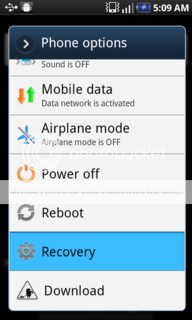
Entering clockwork recovery from a custom ROM
If you are using a custom rom it is usually standard for a boot menu added.
You can get to it by holding down the power button for about 5seconds.

Entering clockwork recovery froyo
With the phone off press and hold Volume up+Volume down+Power button.
Samsung logo will flash twice, after the second one let go of the buttons.
This will lead you into blue recovery, with the volume keys scroll to
apply sdcard:update.zip then hit the home button.
Controlling Clockwork:
Stock Recovery
Volume up and down = Scroll up and down
Menu= Screen sleep
Home= SelectRed Clockwork
Volume up and down = Scroll up and down
Menu= Back / Screen sleep
Home= Screen sleep
Back= Select
Power= Select
Search= BackLast edited by DroidXcon; 04-01-2011 at 11:04 AM.
- 03-08-2011, 04:20 AM
Thread Author #4
Wiping Data,cache partition, and Dalvik cache
Wiping Data:
This will erase all contacts apps and any other data on the phone
Wiping data is usually done before flashing a Rom.
Necessary when moving from build to build for example: Eclair to Froyo.
Not as necessary when moving from Rom to Rom within the same build.
Although not always necessary consider this as a solutions if wiping cache and dalvik cache when force close loops happen.
To initiate a data wipe from clockwork

*******************************************************************************************************
Wiping Cache partition:
This will not erase any contacts or apps.
This should be done everytime a new rom is flashed.
If caught in a force close loop it is usually a good idea to go back and wipe cache again
To initiate a Cache partition wipe from clockwork

********************************************************************************************************
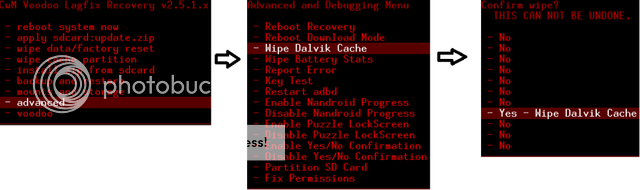
Wiping Dalvik Cache:
This will not erase any contacts or apps.
Although not necessary to be done before every rom it is a good idea to wipe.
Dalvik cache can grow very large the more apps you had before flashing the new rom
the longer it will take to boot the new one as it will build upon the already large Dalvik cache.
So making it a habit to wipe dalvik cache can only help you .
To initiate a Dalvik cache wipe from clockwork
Last edited by DroidXcon; 03-08-2011 at 06:32 AM.
Thanked by 18:+ Show/Hide list of the thanked
- 03-08-2011, 04:21 AM
Thread Author #5
Flashing a zip file (ex.Roms,themes,kernels and apps)
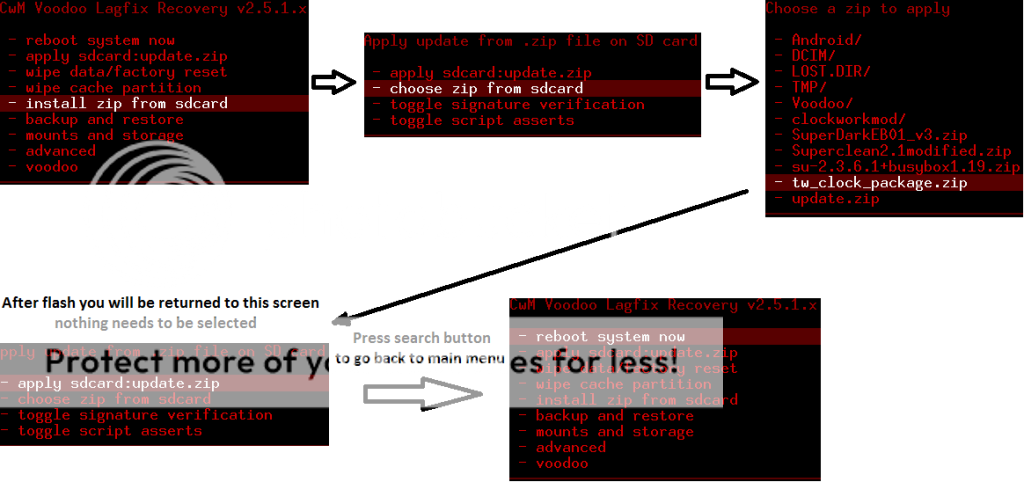
Flashing a zip file:
Zip files can be flashed for many different reasons such as applying roms, themes, kernels and applications.
Before flashing a zip file you must make sure that the file is for your particular device and will be compatible
with the current build you are on.
When flashing a zip wiping data or cache is usually not necessary, Unless you are flashing a Rom then wiping data or cache may be necessary(see post #4)
When flashing Voodoo you must enable lagfix before rebooting the system (see post #9)
To flash a zip file from clockwork
Last edited by DroidXcon; 03-13-2011 at 03:24 AM.
- 03-08-2011, 04:22 AM
Thread Author #6
Nandroid Backup and Restore
Nandroid Backup/Restore:
This is a backup that takes a snapshot of your operating system, your data and settings.
This is similar to a restore point on a desktop computer.
It is an excellent tool if you like to flash roms on your device and you run into trouble.
A nandroid restore will bring you back to the state your phone was in at the time you made the backup.
It is important to note that a Nandroid backup does not backup/restore your kernel or modem,
so its important to be aware that you may have to flash a compatible modem and kernel to restore full functionality to your device.
Backups can be renamed by either using a file manager on your phone or mounting your card to your computer.
sdcard>clockwork>backup> then rename the back up of your choice.
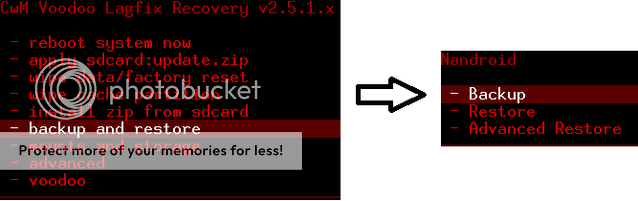
To create a Nandroid Backup

To restore from a Nandroid Backup
Last edited by DroidXcon; 03-11-2011 at 06:37 AM.
Thanked by 17:+ Show/Hide list of the thanked
- 03-08-2011, 04:23 AM
Thread Author #7
Fixing Permissions
Permissions:
When your phone boots up for the first time and apps are installed they create a corresponding data folder these folders are assigned a User ID. which the app apk becomes owner of. the ID is assigned in installation order.
Now if for some reason a data folder goes missing as in deleted or corrupted these UID's are regenerated but since they are not doing it in installation order the system instead assigns the ID in alphabetical order.. When this is done the data folders no longer match the application. So when the apk goes to look for its data it finds something that has nothing to do with it. BOOM force close city. We usually fix this by wiping data and letting the apk's reinstall thereby recreating its data folders and reassigning UID's .
when you fix permissions the system goes and corrects this alphabetical mismatch. And you are back to normal. Here is a visual representation of this

How a Malicious app with root access could theoretically use permissions:
A malicious app could in theory create a Group ID and be a Co-owner of a particular UID, therefore retrieving whatever is created in the original data folder. Here is a visual of what this would look like

Fixing Permissions:
Unfortunatly on both Red clockwork's cwm froyo and cwm ALL fix permissions option is broken.
In order to fix permissions you must do it through either ADB commands or from a terminal emulator.
Before being able to use either method to fix permisions you must flash via clockwork (see post #5 flashing a zip)
All methods require superuser permissions (Root)
Fixing from terminal emulator
Download any free Terminal Emulator from the market. Here is the one i use
Android Market=
AppBrain=

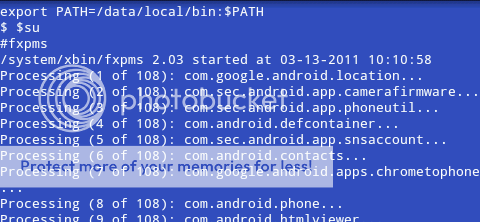
from the prompt($) type
$su
(superuser app may ask to allow permission, hit allow. this will change $ to # then)
then type
#fxpms
it should look similar to this

Fixing with ADB commands
If you dont know how to use adb you can follow this tutorial http://forum.androidcentral.com/gene...quick-adb.html and get familiar with it.
I'm assuming if you are attempting to use adb that you know the basics.
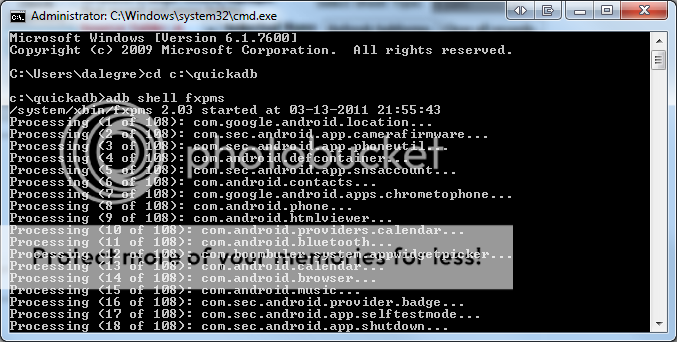
Option 1) from command prompt
>adb shell fxpms

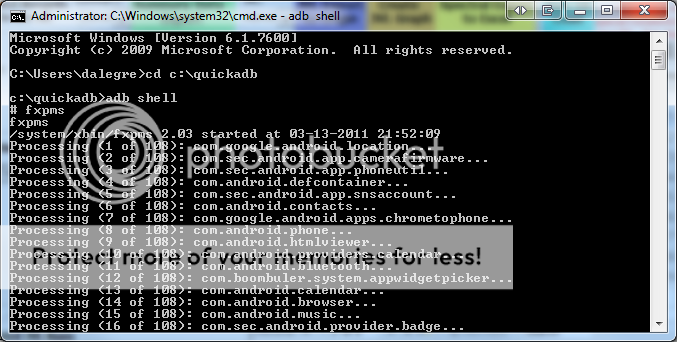
Option 2)from command prompt
>adb shell
#fxpms
Last edited by DroidXcon; 03-14-2011 at 06:46 AM.
Thanked by 14:+ Show/Hide list of the thanked
- 03-08-2011, 04:23 AM
Thread Author #8
Wiping Battery Stats
Wiping battery stats:
When flashing roms data is not always wiped. After numerous flashes it is possible for the battery % to be slightly off.
Best way of restting this is to shut your phone off and charge till it is fully charged. Then boot directly into clockwork recovery.
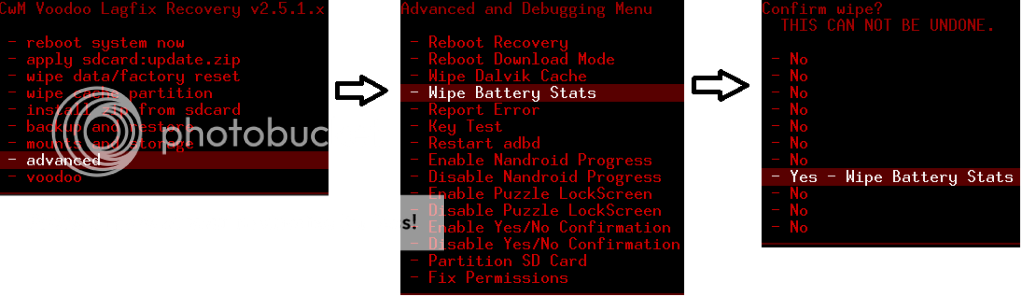
Wiping battery stats
Last edited by DroidXcon; 03-14-2011 at 02:58 AM.
Thanked by 11:+ Show/Hide list of the thanked
- 03-08-2011, 04:24 AM
Thread Author #9
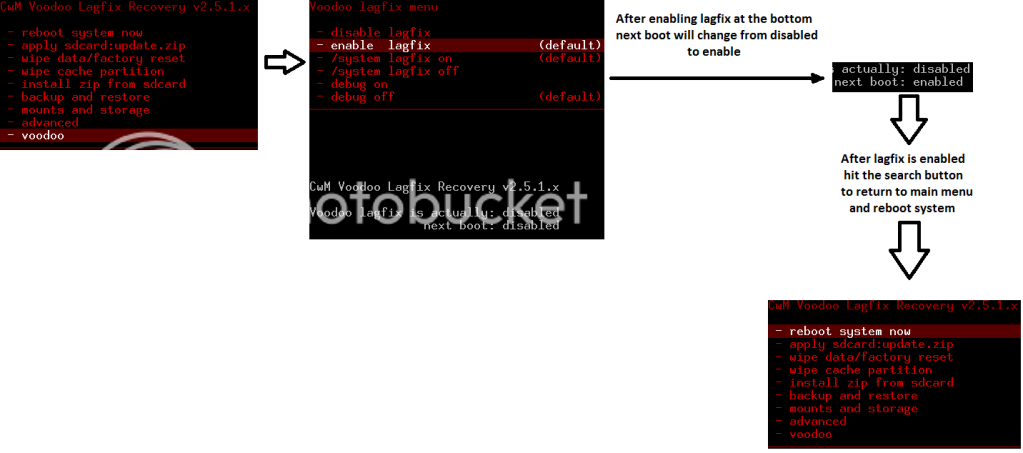
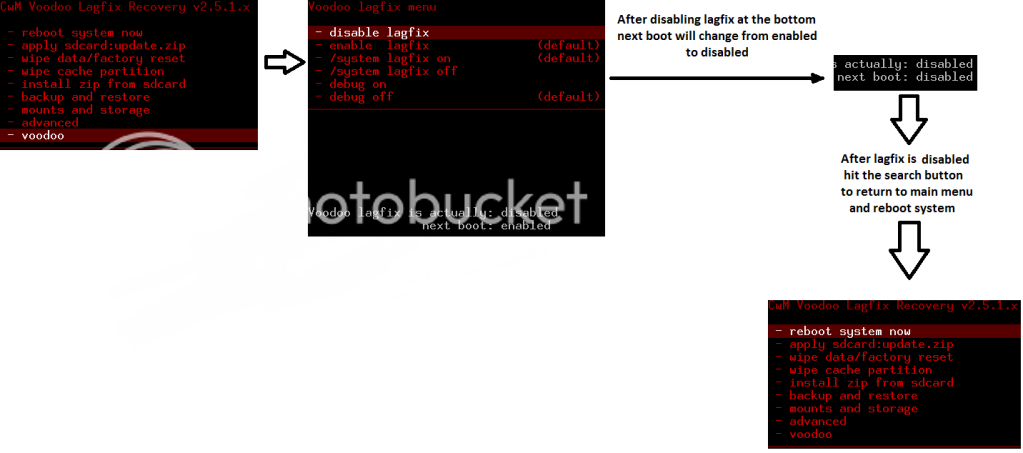
Enable and Disable Voodoo Lagfix
Enable and Disable Voodoo Lagfix:
After flashing a voodoo kernel lagfix will usually intiate conversion itself but this is not always the case,
the best way to ensure conversion will initiate is to enable lagfix.
When flashing a nonvoodoo kernel after your phone has converted lagfix,
it is Highly recommended to disable lagfix first.
To learn more about Voodoo please join this discussion http://forum.androidcentral.com/veri...ar-2011-a.html
Enabling Lagfix
After flashing a voodoo kernel (see post #5 how to flash) Lagfix should be enabled before reboot.

Disabling Lagfix
Before flashing a nonvoodoo kernel to a lagfixed enabled system lagfix needs to be disabled. After it is disabled fully reboot your system then you can power down, boot back into clockwork recovery and flash your new kernel.
Last edited by DroidXcon; 03-14-2011 at 04:26 AM.
Thanked by 17:+ Show/Hide list of the thanked
- 03-08-2011, 04:40 AM
Thread Author #10
Credits
Credits
- Android Central Adviser Adrynalyne for all his contributions including the fix for Fixing permissions
- Android Central Administrator Jerry Hildenbrand for the support in understanding Permissions
- Android Central Member Braydon525 for providing a method of installing clockwork on the Mac OS X platform
- Android Central Member gunnermike53 for providing a thread on http://forum.androidcentral.com/veri...ar-2011-a.html
- Android Central Member Landshark for inspiring many of the directions in this thread
- and for all their development efforts of Clockworkmod
Last edited by DroidXcon; 03-14-2011 at 03:42 PM.
Thanked by 22:+ Show/Hide list of the thanked
- 03-14-2011, 06:51 AM
Thread Author #11
Reserved 1
- 03-14-2011, 06:52 AM
Thread Author #12
Reserved 2
- 03-14-2011, 06:52 AM
Thread Author #13
Reserved 3
- 03-14-2011, 09:00 AM #14
- 03-14-2011, 11:50 AM #15
Awesome...as usual..
One question, MODS why ain't the stickified??
Perhaps a DIY folder for posts like this...IL KYOCK PIL SAL - 03-14-2011, 12:18 PM #16
You da Man!
Awesome job bro! Breaking it down the way you did certainly makes it easier to understand than my war and peace novel sized explanation of how to flash through CWM. I will be referring everyone to this thread. I definitely agree on the sticky recommendation, especially with the frustration over the Froyo delay creating an ever-increasing wave of new rooters coming here. This is one of the best tutorials they will need, and the screenshots are awesome.
Shouldn't we treat this world like the Garden of Eden and avoid the apple at all costs?
Sometimes you go to the circus...........Sometimes the circus comes to you.
Instructions on how to flash ROMs, Kernels, Patches, and Mods through clockworkmod recovery, CWM: DroidXcon's CWM Thread
If you add me on Google+, please list your AC username as a nickname so I know who you are. - 03-14-2011, 12:41 PM #17IL KYOCK PIL SAL
- 03-14-2011, 01:08 PM #18Shouldn't we treat this world like the Garden of Eden and avoid the apple at all costs?
Sometimes you go to the circus...........Sometimes the circus comes to you.
Instructions on how to flash ROMs, Kernels, Patches, and Mods through clockworkmod recovery, CWM: DroidXcon's CWM Thread
If you add me on Google+, please list your AC username as a nickname so I know who you are. - 03-14-2011, 02:24 PM #19
I thought that i read somewhere on here that this does not wipe your batter stats, (because there is not script in CWM that says it was wiped like there would be when wiping cache) and that it had to be done through terminal emulator.
Is this true or am I making this up? lol - 03-14-2011, 02:30 PM
Thread Author #20
probably true, i have never used the function as i think its not very useful, i dont really care if my battery is 4% off by the time i get that close i have already charged,and since i wipe data most of the time i dont really see issues.
but i wanted to add the section just to be thorough and it will probably be fixed in the future.... if you could find me this info i will def update the post - 03-14-2011, 02:35 PM #21
Sure thing... It may have been from a different forum, but I will back track a bit and see if I can find it.
And once again... THANK YOU for another awesome post. You are truly an essential member to this forum.... thanks!
Also, one other thing... after wiping bstats, do you still need to reboot, reboot, reboot all the way down to 2% (or so) to get optimal life out of the battery?Last edited by JOrtenzi; 03-14-2011 at 02:43 PM.
- 03-14-2011, 02:41 PM
Thread Author #22
Thank you and very welcome, but language please, trying to be family friendly here. 
as for the 2% thing, this is really a extreme solution to a not so extreme problem. that whole process is to get a close tolerence in the calibration of the battery and battery %. but like i said are you really waiting till your phone is 4% before you decide to throw it on a charger? unless you want it perfect for perfects sake then those steps are really unnecessary - 03-14-2011, 02:43 PM #23
- 03-14-2011, 02:56 PM
Thread Author #24
- 03-14-2011, 03:03 PM #25
It's easier to tell the fix permissions function is not working in cwm because you don't get the scrolling long list of permissions being fixed. So I guess looking at it from that standpoint you could apply that to the battery stats because when you run it in cwm, the phone does not automatically reboot like it does when you run bstats in terminal emulator. Not sure if the phone is supposed to restart when you run bstats in cwm, just an observation.
Shouldn't we treat this world like the Garden of Eden and avoid the apple at all costs?
Sometimes you go to the circus...........Sometimes the circus comes to you.
Instructions on how to flash ROMs, Kernels, Patches, and Mods through clockworkmod recovery, CWM: DroidXcon's CWM Thread
If you add me on Google+, please list your AC username as a nickname so I know who you are.


Reply