Android Forums at AndroidCentral.com >  Verizon Galaxy Nexus >  Verizon Galaxy Nexus Rooting, ROM's, and Hack's > [Automated] Wug's Galaxy Nexus Root Toolkit v1.3 (Updated 1/22)

[Automated] Wug's Galaxy Nexus Root Toolkit v1.3 (Updated 1/22)

Reply
Like Tree66Likes

 
Thread Tools Search this Thread
    Thread Author   #1  
Old 01-04-2012, 01:36 PM
Member
 
Posts: 73
Join Date: Jan 2012
Thanked 99 Times in 9 Posts
Likes Received: 35
Activity: 3/20
Wug's Galaxy Nexus Root Toolkit
Unlocking, rooting, re-locking and un-rooting simplified!

VERSION 1.3 - This program contains all the files you need to unlock and root your device, or flash it back to stock and re-lock it. You can also use this program to backup all your user apps, system apps, and app data, and easily restore them later in one click; you can flash or boot any img files you wan,t to any partition on your device; as well as flash any current or future stock android release, making updating your device as easy as can be; and now with the latest release (v1.3) you can install the drivers automatically.

There is now one universal version that works for both Verizon (CDMA) and GSM models.

Galaxy Nexus Root Toolkit - Version 1.3


~ my goal for this project is make the entire process as smooth and simple as possible ~
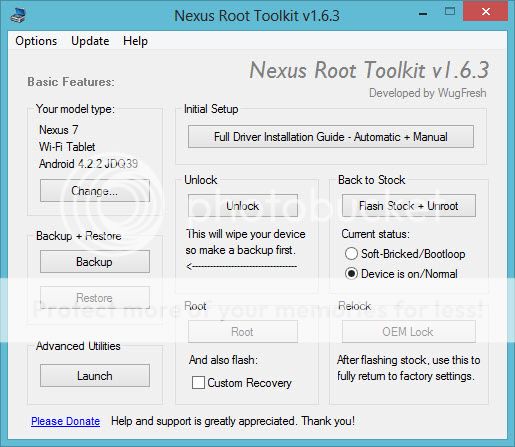
Feature breakdown:

System Variables:
  • Ask the user if they want to update their systems path variable to point to adb for global use from the cmd line
  • This feature is optional.
Drivers
This will automatically:
  • Install the "Verizon_Wireless_I515_Galaxy_Nexus_USB_Driver _v1. 4.6.0.exe"
  • Provide the end user detailed instructions for manually configuring their drivers.
  • Attempt to configure the drivers automatically with pnputil or devcon depending on the user system
  • Driver configuration is a two step manual process:
    • Your device has to be configured once when its ON and again when its in BOOTLOADER
    • You have to manually configure these drivers through device manager.
    • Follow the onscreen instructions for driver configuration, or refer to post #2 for more details.
Unlock
This will automatically:

  • This will unlock your device which will also inexorably factory reset your device.
    • Factory resting means that, ALL your user app settings and files will be erased.
    • So... please take the steps necessary to preserver your important data.
      • I recommend backing up all your picture, music files, and such manually by just:
        • Plugging your device into your computer and using drag and drop to copy them over
      • Then use the backup feature of the toolkit to make a full backup of your apps and settings
        • See "backup and restore"
Root
This will automatically:
  • Push su.zip (Superuser.apk) to your sdcard
  • Flash clockwork mod (this is specific to your device model; ie CDMA version vs. GSM version)
  • Provide on screen instructions for completing the rooting procedure
  • Launch a script which automatically enters adb shell commands to rename the file "recover-from-boot.p" to to "recover-from-boot.p.bak to ensure permanent clockwork
Flash Stock + Unroot
This will automatically:
  • Download the latest 4.02 android release for your specific model (CDMA/LTE vs GSM/HSPA+)
  • Hashcheck the resulting download once it's finished to verify the files integrity. If it passes:
  • Extract the .tgz factory image package in the proper manner to a specific sub directory in your GnexToolkit folder
  • Flash the stock images to your device in a highly controlled and ordered fashion.
  • Allow you to bypass the download and extract phase in the future if you have already done it before
  • Allow you to point the program to ANY android factory image package, and let the program take care of the rest
  • This process also includes a user input box governed hashcheck verification step to ensure the files integrity.
  • Has an option to start the flashstock process from bootloader mode incase the user is bricked and can't boot ups charged first!
  • Flashing stock will also inexorably unroot your device.
OEM Lock
This will automatically:
  • Re-lock your device back to original equipment manufacture specifications.
    • You must use the "flash stock + unroot" feature first before being able to use this option successfully.
Backup Apps + Data:
This will automatically:
  • Initiate a backup of all your apps and app data
    • User will be prompted to enter a password on there device to protect their backup file
    • Once the backup is complete it will be stored on the users computer in the directory:
      • And the file name will automatically be generated as the date and time the backup was made
    • Note: this does not backup all of your SDcards contents: So its up to the end-user to backup any picture or music files they have.
      • This only backs up apps + app data
    • The user is given the option to backup system apps as well
Restore Apps + Data:
This will automatically:
  • Initiates a customized browse to file window which asks you to locate the android backup files (*.ab) you would like to restore
    • This browse to file window automatically defaults to the proper location of your backups
    Code:
    \Wugs_GnexRootToolkit\nexusbackup
  • Once the user selects the backup file, the program will automatically initiate a restore operation
    • User will be prompted to enter the password they set in order to restore their file
      • When the correct password is entered the file will be restore.
Quick tools:
  • Provides the end user an easy one click method for rebooting their device
  • Rebooting their device into bootloader mode, and checking if their device is recognized.


Flash to Partition:
  • Provides the end user an easy one click method for flashing any img file to any partition on their device
  • Is designed to make modding on the nexus as simple as selecting the file you wan't to flash and pressing ok
  • Has the option to boot img files as well, to try them out temporarily before flashing them permanently

Instructions:
  • Do not plug in your device until this program prompts you too!
  • Install the program by double clicking the GnexRootToolkit.sfx.exe
  • This will extract the contents to %HOMEDRIVE%\Wugs_GnexRootToolkit
  • Place a shortcuts on your Desktop
  • Launch the program for first use
  • Use the "Drivers" option to make sure all your drivers get configured properly.
    • This is a crucial step. Nothing else will work otherwise, so make sure your drivers are properly configured before you try doing anything else with this program.
    • Follow the onscreen driver instructions carefully and you should have no problems.
  • Use the "Backup Apps + Data" if you want to preserve your apps and settings for restoration after you unlock and root.
  • Then use the "Unlock" to unlock and the "Root" to root... Tada! Enjoy your unlocked and rooted device. ^_^
  • Then whenever you need to go back to square one just use the "Flash stock + Unroot" and "OEM lock" features.
    • Remember that this option can also be used if you completely brick.
    • This should bring you back to a fully locked stock factory state.
Download:
[Only registered users can view links. ] [Only registered users can view links. ] [Only registered users can view links. ]
Checksums:
File size: 40.5 MB MB
CRC-32: 60173e80
MD4: ce769bb081167b821b02518f49cb9374
MD5: ae6dda67dc46026cd1684464137ecbc8
SHA-1: 20e0f5cdacd2e7a970a1a6be2d87c1d08c938c5e

Need a simple way to validate checksums? I recommend:
[Only registered users can view links. ]


Credits:
  • Droid Life for their great instructions!
  • Google for being pwn and making android.
  • [Only registered users can view links. ] for making Clockwork Mod
  • copkay for his great [Only registered users can view links. ] on making backups
  • mskip for getting Devcon.exe to work properly on XP
  • WugFresh ^_^
Donate:
~ If you like my work, please consider making a small donation. Help and support is greatly appreciated. Thank you! ~

1/14 6:21PM

Last edited by WugFresh; 01-26-2012 at 04:28 PM.
    Thread Author   #2  
Old 01-04-2012, 01:37 PM
Member
 
Posts: 73
Join Date: Jan 2012
Thanked 99 Times in 9 Posts
Likes Received: 35
Activity: 3/20
Complete manual driver instructions for those of you who are having problems:

Part 1: Configuring your adb drivers

1. Turn your device completely on, enable USB debugging, and connect your device via USB
  • To enable USB debugging: on your phone, settings > developer options > check USB debugging

2. Open device manager: Start > type devmgmt.msc
3. Look for anything that resembles your device: it could say Galaxy, it could say Android device... whatever..
  • If you can't figure out which one is your device:
    * Unplug your phone and then replug it while watching device manager
    * This will help you find out which one it is, even if the computer thinks its something else

4. Uninstall this device!
  • Right click the device > Uninstall
  • If it prompt you about removing software associated with it, check the box and hit OK

5. Now refresh your devices by hitting the "Scan for hardware changes" button
  • It looks like a little computer with a magnifying glass over it.

6. You will now see the device with a yellow exclamation mark next to it
  • If your computer automatically reconfigured it and its not right driver:
  • You want it to say Android adb Device or Samsung adb device, if it says this move on to part 2.
  • Then you can disable automatic driver configuration (on Win7) by opening cmd prompt and typing:
    Code:
    rundll32.exe newdev.dll,DeviceInternetSettingUi 2
  • Pressing enter, and then changing the setting.

7. Now you wan't to install the correct drivers...
  • Right click the device and choose "Update Driver Software..."
  • Now select "Browse my computer for driver software" (hotkey: Alt+r)
  • Now in the "Search for driver software in this location:" enter:
    Code:
    %HOMEDRIVE%\Wugs_GnexRootToolkit\data\drivers
  • Now Hit enter, agree to the security warning and wait for the driver to configure..
  • ...It could take a few minutes... then tada!
  • Alternatively (this method only works on some computers), if you already installed the Samsung drivers
  • ...which you probably did since its bundled into my toolkit, then you can try using:
  • "Let me pick from a list of device drivers on my computer" (Hotkey: Alt+L)
  • Browsing for "Samsung Devices" and selecting Next...
  • Then choosing "SAMSUNG Mobile ADB Device"
  • Then selecting next, waiting for it to configure, and tada!

8. Now you wan't to test to make sure the drivers are working correctly:
  • Open cmd promt (Start > cmd.exe > enter) and type:
    Code:
    adb devices
  • If your device is listed (string of numbers and letters) then you are good!
  • Now go onto part 2

Part 2: Configuring your fastboot drivers


1. Boot your phone into bootloader mode, there are two ways to do this:
  • Opening cmd prompt (Start > cmd.exe > enter) and typing:
    Code:
    adb reboot bootloader
  • and press enter. or...
  • With your phone in a completely powered off state, turn it back on by:
  • Holding both up and down volumes buttons and the power button

2. Connect your device via USB
3. Repeat steps 2 through 7 from Part 1
  • ...unless you see that the drivers are already configured as a working adb device, then go onto step 4.
  • ​The only difference you will experience this time, is that when you get to the part with the un-configured device...
  • It will most likely be listed as: "Android 1.0"

4. Once you get the un-configured "Android 1.0" device configured and listed as an adb device, then test it:
  • Open cmd prompt (Start > cmd.exe > enter) and type:
    Code:
    fastboot reboot-bootloader
  • If it reboots your bootloader and says "Okay" then you are 100% good to go at this point.

5. You can now reboot your phone and go onto to unlocking and rooting your phone.
  • To reboot your phone from bootloader mode, you have two options:
  • If you see the big green start, then just press the power button.
  • Or...you can be a nerd and do it from cmd line:
    Code:
    fastboot reboot

6. Driver configuration complete!

Last edited by WugFresh; 01-24-2012 at 11:03 PM.
    Thread Author   #3  
Old 01-04-2012, 01:38 PM
Member
 
Posts: 73
Join Date: Jan 2012
Thanked 99 Times in 9 Posts
Likes Received: 35
Activity: 3/20
Changelog:

LATEST RELEASE DETAILS - VERSION 1.3 (1-22-2012)
  • Removed "SDK+Files" button; the program no longer is dependent on the SDK being set up. This significantly reduced the file size.
  • All files the program needs are now localized to extracted directory upon installing [%HOMEDRIVE%\Wugs_GnexRootToolkit]
  • Added the "System Variables" button, (optional feature) updates the systems path variable so you can use adb and fastboot cmds globally from the cmd line
  • Enabled a more dynamic file backup system. User can now create their own custom file name for their backups, (defaults to current date and time)
  • Restore feature will now automatically default to look in the users last backup location and fill in the file name of the users last backup
  • Added additional warnings/information about backing up system app + data in the backup script, to ensure the end user adequately preserves their important data
  • Added automated driver installation with devcon and pnputil (depending on your system type); manual instructions still included in case that doesn't work
  • Fixed the permanent CWM automated adb shell script to successfully change "recovery-from-boot.p" to "recovery-from-boot.p.bak" (rather than "recover-from-boot.p without the "y"... doh!)
  • Added more communication to the CWM automated adb shell script so the end user would be more aware as to what was going on.
  • No longer use UPX compression for any of my exe files in the package to prevent false positives from antivirus programs like Avast
  • Reworked the quick tools button to prevent a small glitch I noticed where one of the buttons would stop working temporarily
  • Fixed issues people were having who had solid state hard drives with a different letter (not C:\) as their primary system directory
  • Fixed issues people were having who stored their backups in locations where the path had spaces in it.
  • Fixed issues people were having who tried flashing img files with spaces in the file name or path
  • Other minor bug fixes, and a few minor augmented feature improvements.


LATEST RELEASE DETAILS - VERSION 1.2.2 (1-15-2012)
  • Changed the permanent root script to rename the "recover-from-boot.p" file to "recover-from-boot.p.bak" instead of just deleting it.
RELEASE DETAILS - VERSION 1.2.1 (1-15-2012)
  • Fixed the support button
RELEASE DETAILS - VERSION 1.2 (1-14-2012)
  • Took out the pre-extracted android factory images and made the program universal (supports both CDMA/LTE and GSM/HSPA+)
  • Built a customized installer for pulling the factory images from googles servers, hash checking it, extracting it and flashing it
  • Support to easily extract and flash any future android release with built in user input box governed hash checking
  • Added the option to bypass the download and extract phase if the user already did that before.
  • Added quick tools for easy access to tasks like rebooting your phone, rebooting it in to bootloader mode, or listing devices
  • Built and included an automated adb shell script to ensure clockwork mod is permanently installed.
  • This script will open up a cmd window, enter into adb shell with SU permissions, mount system, and then delete "recovery-from-boot.p"
  • This enables the end user to gain permanent clockwork on first root without the need of an app like Root Explorer
  • Added the ability to flash any img files to any partition on the phone in one click:
  • Just boot your phone into bootloader, or use the program too
  • Select the button which corresponds to the partition you want to flash to
  • The program will open up a browse to file window, in which the user can select the img file they wan't to flash
  • Press ok, and the program will take care of the rest
  • Streamlined the entire driver installation/configuration process. With full detailed on screen manual instruction included
  • Added lots of checks along the way to ensure the user is properly connected before attempting to do something
  • Rewrote/reworked a lot of the code to fix/address all known bugs in the previous release
  • Included explanatory introduction blurbs for all the processes so the end user knows what's going on and whats about to happen in each stage beforehand. This way the end user is more comfortable with and more clear on the entire process.

RELEASE DETAILS - VERSION 1.1
  • Added GSM support! Woot! ^_^
  • Added the ability for the end-user to select the location of their own SDK setup
  • This dynamic feature is facilitated by a browse to folder window
  • Relevant path variables are stored to local bat and dat files for retrieval
  • Consolidated and re-wrote a majority of the original code
  • End-user will experience a more logical flow of information and procedures
  • Added the ability for the end-user to backup and restore their apps and data
  • Each backup is automatically dated and time stamped
  • Created a customized 'Browse to file' feature for selecting and restoring backups
  • Removed automated driver configuration
  • Replaced it with a step-by-step folder of img's for reference
  • Confirmed a working driver solution on windows xp
  • Extracted driver files from PDAnet for use on XP
  • These same extracted driver files can be used on Win7/Vista if needed
  • The driver configuration is more comprehensive now
  • After drivers are configured, it prompts user with a way to test them out.
  • Cleaned up and re-wrote a lot of the outputted explanation text
  • Lots of minor bug fixes, especially regarding some 'current directory' problems
  • Touched up the GUI a bit to accommodate for the additional buttons
  • Set up a better base framework to enable easier and faster future development...

RELEASE DETAILS - VERSION 1.0
  • Initial Setup, Unlock + Root, Unroot + OEM lock
  • The beginning's of Galaxy Nexus Toolkit...

Last edited by WugFresh; 01-24-2012 at 11:00 PM.
  #4  
Old 01-04-2012, 03:45 PM
Device(s): Evo 4g, Evo 3D, G. Nexus
My Next Device: Who knows.
 
Posts: 644
Location: Sac, CA
Join Date: Dec 2009
Thanked 59 Times in 48 Posts
Likes Received: 56
Activity: 3/20
So what about us that have unlocked but not rooted. Will the option to unlock and root still work or will we need to root manually still?
Thanked by UnbleB99
  #5  
Old 01-04-2012, 03:46 PM
Italiano Papi
Device(s): Droid Razr Maxx, Xoom Wifi
ROM/Kernel: ICS 4.0.4 on both!
My Next Device: Samsung Galaxy S III
 
Posts: 1,464
Location: Raleigh-Durham
Join Date: Jul 2010
Thanked 150 Times in 116 Posts
Likes Received: 40
Activity: 2/20
Bravo and fantastic! I commend this guy for making a one click program like that. Hats off to you and the developer!
Patrick and Pugswatergirl like this.
Thanked by UnbleB99
  #6  
Old 01-04-2012, 03:52 PM
Device(s): Epic 4G Touch; Nexus
 
Posts: 116
Location: Suburb of Chicago, IL
Join Date: Dec 2010
Thanked 6 Times in 5 Posts
Likes Received: 1
Activity: 2/20
thank you very much; will try in a few hours!
Thanked by UnbleB99
  #7  
Old 01-04-2012, 03:56 PM
Device(s): Samsung Galaxy Nexus
ROM/Kernel: 4.0.2 Stock
Theme: Stock
My Next Device: NVIDIA Tegra 3 based
 
Posts: 22
Location: Santa Clara, CA, USA
Join Date: Oct 2010
Thanked 3 Times in 3 Posts
Likes Received: 1
Activity: 5/20
Sadly, it appears the download link is overloaded. Error 509 from Dropbox when attempting to use it.

Hopefully this option will be mirrored elsewhere once the author has a chance to do so.
Thanked by UnbleB99
  #8  
Old 01-04-2012, 03:59 PM
Device(s): EVO 4G, Galaxy Nexus
 
Posts: 72
Location: Boston, MA
Join Date: May 2010
Thanked 5 Times in 3 Posts
Likes Received: 0
Activity: 0/20
Quote:
Originally Posted by youngzayiles View Post
So what about us that have unlocked but not rooted. Will the option to unlock and root still work or will we need to root manually still?
You beat me to it - this was my exact question. I've already unlocked the phone, but I'm not rooted yet. I'd like to use this tool, but I don't want to wipe my phone again. If necessary, I'll use the manual root process but I'd like to know if this tool will let me just root an already-unlocked phone. Thanks.
Thanked by UnbleB99
  #9  
Old 01-04-2012, 04:00 PM
AC Forums Mod
Device(s): Nexus S 4g & Epic 4g
ROM/Kernel: Euroskank Kangs...
My Next Device: SGSIII or HTC EVO 4G LTE
 
Posts: 8,477
Location: Plainfield, Il.
Join Date: Nov 2010
Thanked 2,287 Times in 1,454 Posts
Likes Received: 433
Activity: 19/20
Looks and sounds impressive... We have something very similar to this on the NS4G but this definitely has a cleaner UI...

Nice job.
Thanked by UnbleB99
  #10  
Old 01-04-2012, 04:10 PM
 
Posts: 7
Join Date: Jan 2011
Thanked 2 Times in 1 Post
Likes Received: 0
Activity: 0/20
cant download =[ lol
Thanked by 2 smb78, UnbleB99
