
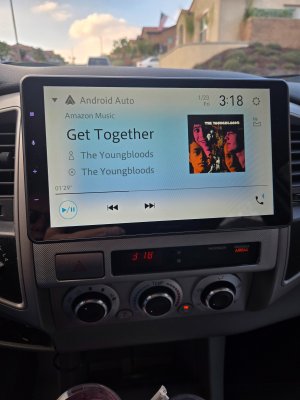
Question Android Auto/ Amazon music screen
- Thread starter Russ369
- Start date
You are using an out of date browser. It may not display this or other websites correctly.
You should upgrade or use an alternative browser.
You should upgrade or use an alternative browser.
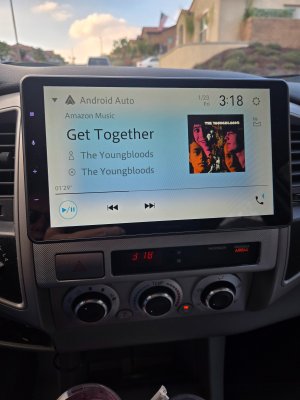
Thanks for replying. Amazon music works great with Android Auto. What I am trying to find is how to access this screen in my original post. This screen shows up on its own (occasionally), vs the standard screen with either a map and music (spilt screen) or just Amazon music screen (as on my phone and attached). Here's what I get 95% of the time. I know it's silly but really would like to find how to access the other screen.I'm guessing you're trying to get Amazon Music service working with Android Auto? Is the Amazon Music App working stably on your phone?
Attachments

VidJunky
Well-known member
- Dec 6, 2011
- 6,609
- 1,713
- 113
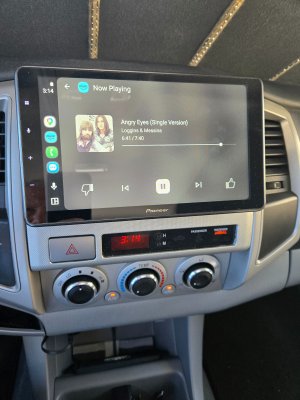
Looking at each pic in comparison to the other, one clearly says AA while the other looks like a it is mirroring your phone display. Mirroring displays items that you would expect to see on your phone like your favorites menu, the icons along the side that would appear pinned to the bottom of your phone screen like, Phone Maps Spotify Messages, and in your photo, shows a display like you're in an app. Are you connected the same way in each photo, USB/Wirelessly? Are you using navigation for both pics? If you are not using the same connection method or the same apps it could account for the display difference.
If it is a case of connection type, whether connecting as AA or mirroring, and this is happening randomly here are some steps you can try to cause it to connect as AA every time.
Steps to Fix Connection Issues:
If it is a case of connection type, whether connecting as AA or mirroring, and this is happening randomly here are some steps you can try to cause it to connect as AA every time.
Steps to Fix Connection Issues:
- Reset Connections: On your phone, go to Settings > Connected devices > Connection preferences > Android Auto > Previously connected cars. Tap the menu (three dots) and select "Forget all cars".
- Remove Vehicle Pairings: In your phone's Bluetooth settings, forget your car. In the car’s infotainment system, delete your phone from the list of saved devices.
- Re-pair Carefully: Pair your phone and car again. Ensure you allow all permissions (Location, Bluetooth, Nearby Devices) when prompted.
- Set Connection Priority: In your car's settings, find "Device Connections" or "Phone Projection," and ensure Android Auto is prioritized over screen mirroring/media transfer.
- Check Background Activity: Ensure the Android Auto app is not set to "sleep" or restricted in your phone's battery settings.
- Use USB First: If using wireless, establish a solid, consistent connection with a high-quality USB cable first.
Thanks. Not using navigation and always connecting via wireless. Will give your list a try.Looking at each pic in comparison to the other, one clearly says AA while the other looks like a it is mirroring your phone display. Mirroring displays items that you would expect to see on your phone like your favorites menu, the icons along the side that would appear pinned to the bottom of your phone screen like, Phone Maps Spotify Messages, and in your photo, shows a display like you're in an app. Are you connected the same way in each photo, USB/Wirelessly? Are you using navigation for both pics? If you are not using the same connection method or the same apps it could account for the display difference.
If it is a case of connection type, whether connecting as AA or mirroring, and this is happening randomly here are some steps you can try to cause it to connect as AA every time.
Steps to Fix Connection Issues:
Let us know what you find or if any of this helps.
- Reset Connections: On your phone, go to Settings > Connected devices > Connection preferences > Android Auto > Previously connected cars. Tap the menu (three dots) and select "Forget all cars".
- Remove Vehicle Pairings: In your phone's Bluetooth settings, forget your car. In the car’s infotainment system, delete your phone from the list of saved devices.
- Re-pair Carefully: Pair your phone and car again. Ensure you allow all permissions (Location, Bluetooth, Nearby Devices) when prompted.
- Set Connection Priority: In your car's settings, find "Device Connections" or "Phone Projection," and ensure Android Auto is prioritized over screen mirroring/media transfer.
- Check Background Activity: Ensure the Android Auto app is not set to "sleep" or restricted in your phone's battery settings.
- Use USB First: If using wireless, establish a solid, consistent connection with a high-quality USB cable first.

spARTacus
Well-known member
- Sep 9, 2018
- 968
- 280
- 63
I'm not familiar with your Pioneer head unit, but my guess would be the pic in your first post is a full screen view of your head unit's Android Auto Amazon Music App (companion app to the Amazon Music App from your phone), and then the pic in your afterwards post is the same app at your head unit but not quite in full screen mode (with recent other apps/icons list shown off to the left). It could be that your head unit will try to automatically "resume" or "start" music when you get into your vechile (and open the app in a full screen mode) depending on if you were listening to music on your phone before the phone connected to Android Auto.
I'm not sure how to get the split screen to show on a Pioneer head unit. On my head unit I have a multi icon I can press which will switch between the split screen view and list of all Apps available at my head unit. I assume you've tried playing around with the multi square looking icon that shows off to your left? And, with various settings you have in your head uniit (and in Android Auto settings in your phone) for if music should try to automatically resume/start?
Another guess I'll take is the first pic is showing some other Android Auto compatible music player app that's also on your phone, one you don't normally use. When you go into Android Auto launcher settings, are there any other apps listed that could be another music player app?
I'm not sure how to get the split screen to show on a Pioneer head unit. On my head unit I have a multi icon I can press which will switch between the split screen view and list of all Apps available at my head unit. I assume you've tried playing around with the multi square looking icon that shows off to your left? And, with various settings you have in your head uniit (and in Android Auto settings in your phone) for if music should try to automatically resume/start?
Another guess I'll take is the first pic is showing some other Android Auto compatible music player app that's also on your phone, one you don't normally use. When you go into Android Auto launcher settings, are there any other apps listed that could be another music player app?
Last edited:
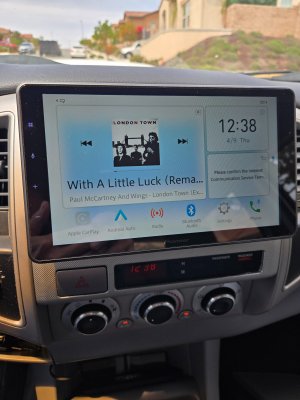
Appreciate all the help. I took more pics as to hopefully garner more insight.
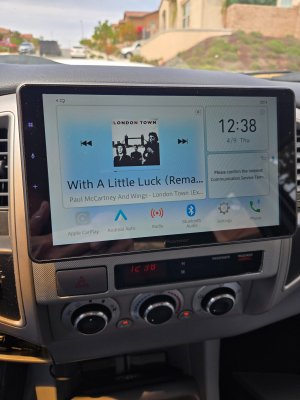
First pic is the Head Unit master screen and is accessible anytime with the top left icon.
Second Pic is Amazon Music as on my phone (Galaxy S24)
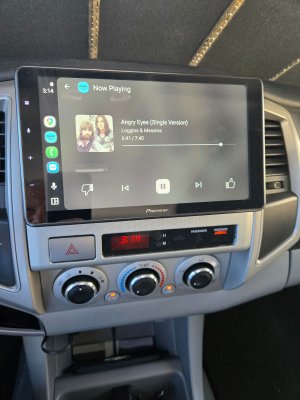
Third pic is Spilt screen with Amazon Music and Google Maps (this shows up on all my vehicles)
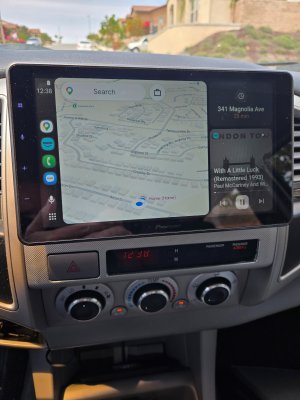
Last pic is my mystery screen (Android Auto/Amazon Music) that shows up on occasion only when I start my vehicle. If I push any icons I lose this screen and can not select it. It's one of my favorite screens as it's very clean looking.
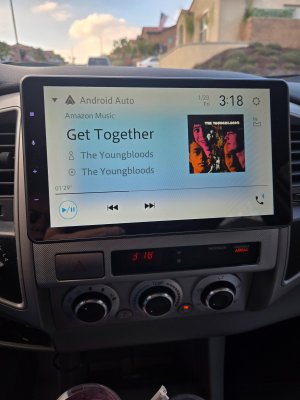
I have tried all suggested settings, restarts, removals and nothing to manually select this screen. It's always pleasant surprise when it shows up, but it's a true mystery as to how it shows up. Or, to get it back.
Open to more great suggestions. Thank you all.
First pic is the Head Unit master screen and is accessible anytime with the top left icon.
Second Pic is Amazon Music as on my phone (Galaxy S24)
Third pic is Spilt screen with Amazon Music and Google Maps (this shows up on all my vehicles)
Last pic is my mystery screen (Android Auto/Amazon Music) that shows up on occasion only when I start my vehicle. If I push any icons I lose this screen and can not select it. It's one of my favorite screens as it's very clean looking.
I have tried all suggested settings, restarts, removals and nothing to manually select this screen. It's always pleasant surprise when it shows up, but it's a true mystery as to how it shows up. Or, to get it back.
Open to more great suggestions. Thank you all.
spARTacus
Well-known member
- Sep 9, 2018
- 968
- 280
- 63
For your mystery screen, does anything happen if you touch the place on the screen where it says "Android Auto" and shows the Android/Auto symbol/icon? What about if you touch the other place on the screen at top right where it seems to maybe show a gear/settings cog (or maybe it's a brightness settings/cog)? Or, what appears to be a drop down arrow at top left, or an equalizer adjustment icon at right, or the phone/Bluetooth icons bottom right?
I'll change my earlier guess and now suggest the screen is a head unit screen, not an Android Auto screen, and maybe your head unit has its own Amazon Music App, separate from your phone (and it's compatible Android Auto) Amazon Music Apps. However, I'm kind of just guessing. What model of pioneer head unit? Does the manual/instructions for it provide any insight? Does the head unit have the ability to connect to Wi-Fi access points, beyond from what your phone provides for wireless Android Auto, or maybe via separate onboard vehicle cellular/onStar?
I'll change my earlier guess and now suggest the screen is a head unit screen, not an Android Auto screen, and maybe your head unit has its own Amazon Music App, separate from your phone (and it's compatible Android Auto) Amazon Music Apps. However, I'm kind of just guessing. What model of pioneer head unit? Does the manual/instructions for it provide any insight? Does the head unit have the ability to connect to Wi-Fi access points, beyond from what your phone provides for wireless Android Auto, or maybe via separate onboard vehicle cellular/onStar?
Lots of good questions, will try and reply to each of them.
1) does anything happen if you touch the place on the screen where it says "Android Auto" and shows the Android/Auto symbol/icon? Response; No, nothing happens. If I touch the down arrow (top left) it takes me out of this screen to my Amazon music home page. This screen then disappears.
2) What about if you touch the other place on the screen at top right where it seems to maybe show a gear/settings cog (or maybe it's a brightness settings/cog)? Response: Settings and screen reverts (disappears) to Amazon Music or split screen.
3) Or, what appears to be a drop down arrow at top left, or an equalizer adjustment icon at right, or the phone/Bluetooth icons bottom right? Response: Top left takes me to the Amazon music home page (mystery screen disappears), Phone/blue tooth allows me to make a call and I do not lose mystery screen.
4) What model of pioneer head unit? Response: Pioneer DMH-WT3800NEX, Pioneer states it's not their screen, but who knows.
5) Does the manual/instructions for it provide any insight? Response: Nothing in the owners manual that indicates this screen just the Head Unit screen I posted with Icons across the bottom.
6) Does the head unit have the ability to connect to Wi-Fi access points, beyond from what your phone provides for wireless Android Auto, or maybe via separate onboard vehicle cellular/onStar? Response: This one I don't know, not tech savvy enough. This is a (???)
Appreciate the great questions. It just maybe a mystery screen, that pleasantly appears on occasion. Will continue to push buttons here and there with all the other screens to see if I ever can find access to this screen.
1) does anything happen if you touch the place on the screen where it says "Android Auto" and shows the Android/Auto symbol/icon? Response; No, nothing happens. If I touch the down arrow (top left) it takes me out of this screen to my Amazon music home page. This screen then disappears.
2) What about if you touch the other place on the screen at top right where it seems to maybe show a gear/settings cog (or maybe it's a brightness settings/cog)? Response: Settings and screen reverts (disappears) to Amazon Music or split screen.
3) Or, what appears to be a drop down arrow at top left, or an equalizer adjustment icon at right, or the phone/Bluetooth icons bottom right? Response: Top left takes me to the Amazon music home page (mystery screen disappears), Phone/blue tooth allows me to make a call and I do not lose mystery screen.
4) What model of pioneer head unit? Response: Pioneer DMH-WT3800NEX, Pioneer states it's not their screen, but who knows.
5) Does the manual/instructions for it provide any insight? Response: Nothing in the owners manual that indicates this screen just the Head Unit screen I posted with Icons across the bottom.
6) Does the head unit have the ability to connect to Wi-Fi access points, beyond from what your phone provides for wireless Android Auto, or maybe via separate onboard vehicle cellular/onStar? Response: This one I don't know, not tech savvy enough. This is a (???)
Appreciate the great questions. It just maybe a mystery screen, that pleasantly appears on occasion. Will continue to push buttons here and there with all the other screens to see if I ever can find access to this screen.
Thanks. Lol... there's a manual with 124 pages? I'll go find it on line and check it out.Your mystery screen kind of looks like the one shown on pg 53/124 of your manual.
Props to you Spartacus. That's it. Swipe left and select the Andriod Auto icon at the top (not the bottom one). No longer a mystery screen......Your mystery screen kind of looks like the one shown on pg 53/124 of your manual.


For anyone who comes across this question going forward (Thanks to Spartacus) here's what you do when you are connected to your Android phone (using Android Auto). Go to the head units main screen (select the icon upper left, off screen).
Then swipe LEFT and select Android Auto from the top of the menu as circled.
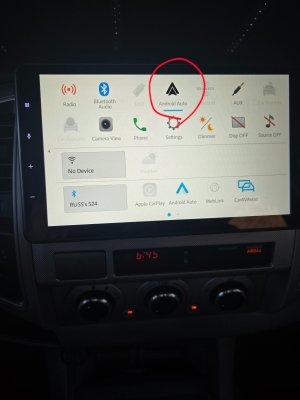
And there you go, a different, but cleaner looking media screen for streaming Amazon music. May do the same thing for Apple Car Play.
Then swipe LEFT and select Android Auto from the top of the menu as circled.
And there you go, a different, but cleaner looking media screen for streaming Amazon music. May do the same thing for Apple Car Play.
spARTacus
Well-known member
- Sep 9, 2018
- 968
- 280
- 63
I've only had experience with a few different head units, but it seems to me the more extensive they are the potentially more confusing things can be for overall functionality in terms of if something is from a companion app for Android Auto from one's connected android phone vs from the head unit itself (in terms of things like apps for music, navigation, lookup, etc). I guess it makes sense from the perspective of vehicle and after market head unit manufacturers, because they want to be able to provide significant functionality options and they aren't sure if they can/should depend too much on the user providing such from their connected phones via Apple CarPlay or Android Auto. My preferences will probably change over time, but right now I prefer head units that are as simple as possible and basically rely on connected phone for almost everything (except for reception of plain ole OTA radio signals).
I agree and if I had never seen this screen I would have relied on my phone driving my music. But, when I saw it I just had to chase it down. Where I'm surprised is Pioneer support saying this screen could not be manually selected (reviewed their email last night). If they had pointed me to page 53 (and a link) to the manual would have solved this a long time ago. In any case, you absolutely solved this one. Thank you.I've only had experience with a few different head units, but it seems to me the more extensive they are the potentially more confusing things can be for overall functionality in terms of if something is from a companion app for Android Auto from one's connected android phone vs from the head unit itself (in terms of things like apps for music, navigation, lookup, etc). I guess it makes sense from the perspective of vehicle and after market head unit manufacturers, because they want to be able to provide significant functionality options and they aren't sure if they can/should depend too much on the user providing such from their connected phones via Apple CarPlay or Android Auto. My preferences will probably change over time, but right now I prefer head units that are as simple as possible and basically rely on connected phone for almost everything (except for reception of plain ole OTA radio signals).
Trending Posts
-
Vivoo Promo Code [VARU7692] 30% Off for The urine test
- Started by cotogon222
- Replies: 0
-
(Latest) Boogzel Apparel Coupon Code : [yfxtvoqw] 50% Off For New Customers
- Started by cotogon222
- Replies: 0
-
VIVOO Coupon Code [VARU7692] 30% Off for Free Wellness kits in first order
- Started by cotogon222
- Replies: 0
-
 Android 17 QPR1 Beta 1
- Started by wyelkins
- Replies: 22
-
Forum statistics

Space.com is part of Future plc, an international media group and leading digital publisher. Visit our corporate site.
© Future Publishing Limited Quay House, The Ambury, Bath BA1 1UA. All rights reserved. England and Wales company registration number 2008885.
 Facebook
 Twitter
 Instagram