Question Android Auto/ Amazon music screen

Russ369

New member
Mar 31, 2026
3
1
3
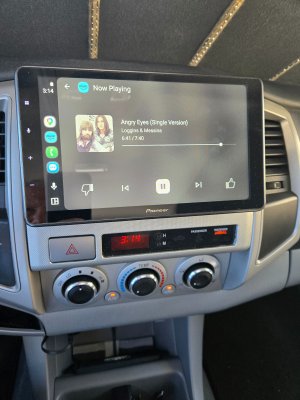
I have a new Pioneer head unit and it works great. But, I'm trying to find how to display the screen (attached). It comes occasionally by itself. Can't manually select. Pioneer says it's an Android thing.
 

Attachments

  • 20260123_151859.jpg
    20260123_151859.jpg
    1.2 MB · Views: 7
I'm guessing you're trying to get Amazon Music service working with Android Auto? Is the Amazon Music App working stably on your phone?
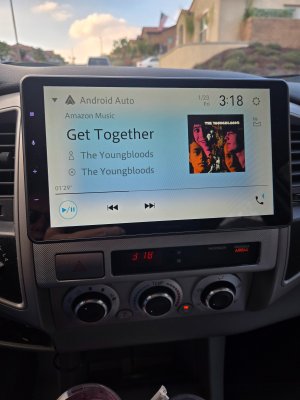
Thanks for replying. Amazon music works great with Android Auto. What I am trying to find is how to access this screen in my original post. This screen shows up on its own (occasionally), vs the standard screen with either a map and music (spilt screen) or just Amazon music screen (as on my phone and attached). Here's what I get 95% of the time. I know it's silly but really would like to find how to access the other screen.
 

Attachments

  • Standard screen shot.jpg
    Standard screen shot.jpg
    2.1 MB · Views: 3
Looking at each pic in comparison to the other, one clearly says AA while the other looks like a it is mirroring your phone display. Mirroring displays items that you would expect to see on your phone like your favorites menu, the icons along the side that would appear pinned to the bottom of your phone screen like, Phone Maps Spotify Messages, and in your photo, shows a display like you're in an app. Are you connected the same way in each photo, USB/Wirelessly? Are you using navigation for both pics? If you are not using the same connection method or the same apps it could account for the display difference.

If it is a case of connection type, whether connecting as AA or mirroring, and this is happening randomly here are some steps you can try to cause it to connect as AA every time.

Steps to Fix Connection Issues:
  • Reset Connections: On your phone, go to Settings > Connected devices > Connection preferences > Android Auto > Previously connected cars. Tap the menu (three dots) and select "Forget all cars".
  • Remove Vehicle Pairings: In your phone's Bluetooth settings, forget your car. In the car’s infotainment system, delete your phone from the list of saved devices.
  • Re-pair Carefully: Pair your phone and car again. Ensure you allow all permissions (Location, Bluetooth, Nearby Devices) when prompted.
  • Set Connection Priority: In your car's settings, find "Device Connections" or "Phone Projection," and ensure Android Auto is prioritized over screen mirroring/media transfer.
  • Check Background Activity: Ensure the Android Auto app is not set to "sleep" or restricted in your phone's battery settings.
  • Use USB First: If using wireless, establish a solid, consistent connection with a high-quality USB cable first.
Let us know what you find or if any of this helps.
 
  • Like
Reactions: BerryBubbles
Looking at each pic in comparison to the other, one clearly says AA while the other looks like a it is mirroring your phone display. Mirroring displays items that you would expect to see on your phone like your favorites menu, the icons along the side that would appear pinned to the bottom of your phone screen like, Phone Maps Spotify Messages, and in your photo, shows a display like you're in an app. Are you connected the same way in each photo, USB/Wirelessly? Are you using navigation for both pics? If you are not using the same connection method or the same apps it could account for the display difference.

If it is a case of connection type, whether connecting as AA or mirroring, and this is happening randomly here are some steps you can try to cause it to connect as AA every time.

Steps to Fix Connection Issues:
  • Reset Connections: On your phone, go to Settings > Connected devices > Connection preferences > Android Auto > Previously connected cars. Tap the menu (three dots) and select "Forget all cars".
  • Remove Vehicle Pairings: In your phone's Bluetooth settings, forget your car. In the car’s infotainment system, delete your phone from the list of saved devices.
  • Re-pair Carefully: Pair your phone and car again. Ensure you allow all permissions (Location, Bluetooth, Nearby Devices) when prompted.
  • Set Connection Priority: In your car's settings, find "Device Connections" or "Phone Projection," and ensure Android Auto is prioritized over screen mirroring/media transfer.
  • Check Background Activity: Ensure the Android Auto app is not set to "sleep" or restricted in your phone's battery settings.
  • Use USB First: If using wireless, establish a solid, consistent connection with a high-quality USB cable first.
Let us know what you find or if any of this helps.
Thanks. Not using navigation and always connecting via wireless. Will give your list a try.
 
  • Like
Reactions: VidJunky
I'm not familiar with your Pioneer head unit, but my guess would be the pic in your first post is a full screen view of your head unit's Android Auto Amazon Music App (companion app to the Amazon Music App from your phone), and then the pic in your afterwards post is the same app at your head unit but not quite in full screen mode (with recent other apps/icons list shown off to the left). It could be that your head unit will try to automatically "resume" or "start" music when you get into your vechile (and open the app in a full screen mode) depending on if you were listening to music on your phone before the phone connected to Android Auto.

I'm not sure how to get the split screen to show on a Pioneer head unit. On my head unit I have a multi icon I can press which will switch between the split screen view and list of all Apps available at my head unit. I assume you've tried playing around with the multi square looking icon that shows off to your left? And, with various settings you have in your head uniit (and in Android Auto settings in your phone) for if music should try to automatically resume/start?

Another guess I'll take is the first pic is showing some other Android Auto compatible music player app that's also on your phone, one you don't normally use. When you go into Android Auto launcher settings, are there any other apps listed that could be another music player app?
 
Last edited: