Question Encrypted Data Lock

ilyabyk83

Well-known member
Dec 3, 2010
92
1
8
Hello people. Very odd thing I see all of the sudden
I only ever had this device on this account.

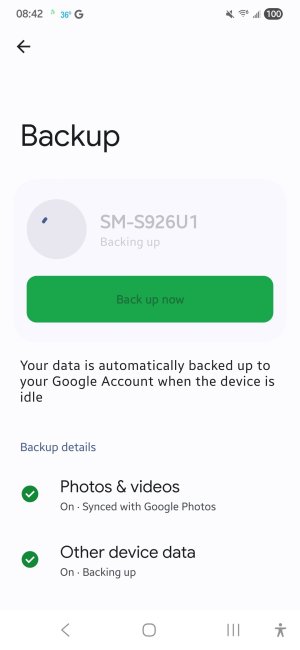
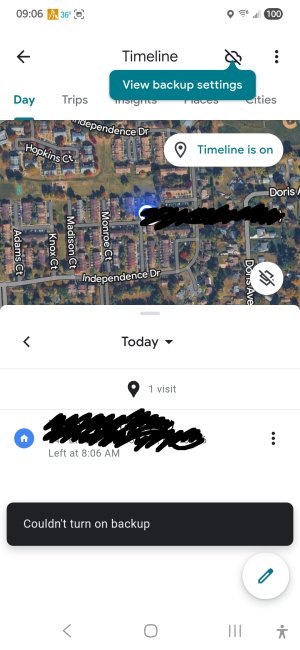
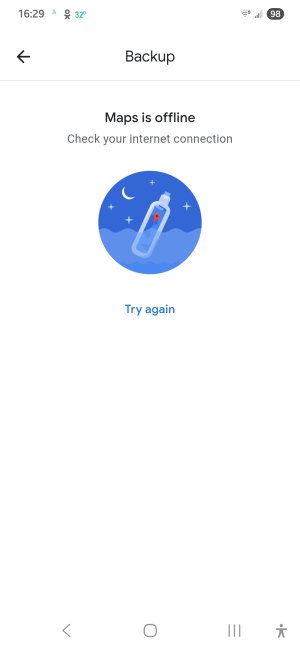
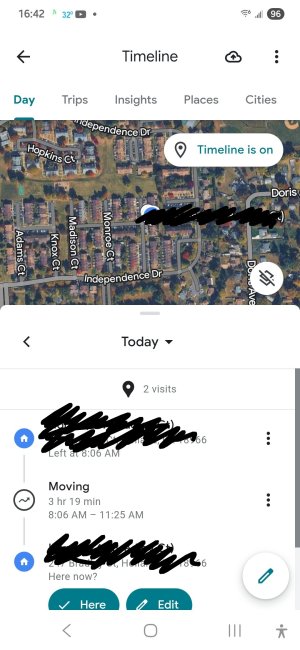
When I go on to GoogLe Maps and select Timeline, I can't back up and I get this screen back. Anybody knows how to fix this?

In Maps I see a grayed/crossed out a liitle cloud emblem. Meaning my timeline isn't being backed up. What to do here? Thank you for your help
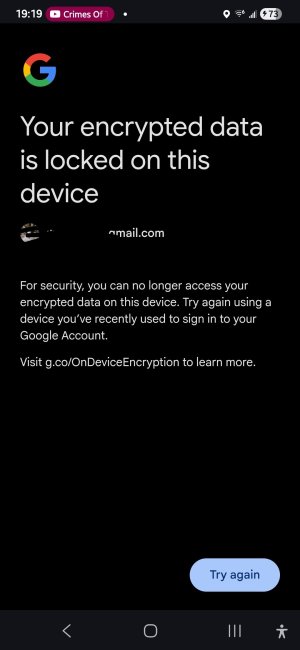
1000000940.jpg
 
Last edited by a moderator:
I edited your screenshot to block out your Gmail address for your privacy.

Did you recently change your Google password?
 
  • Like
Reactions: ilyabyk83
I edited your screenshot to block out your Gmail address for your privacy.

Did you recently change your Google password?
Hi. Thank you. No. Nothing. Only one device on the account also. Password had to been charged several months ago now. Every half a year I just make up a new complicated bs.. but not recently.. Only one device and a pc ever..
 
Can you try removing your Google account from the phone, then adding it back?
 
Can you try removing your Google account from the phone, then adding it back?
I figured out how to remove and readded back. Same exact thing! The little cloud icon on top is grayed out and I can't enable it. Tells that same thing as the screenshot..
 
Are you able to manually back up any important files on the phone, and then do a complete factory reset?
 
Gemini search

If you’ve recently changed your password, switched phones, or factory reset your device, the "key" and the "lock" no longer match.
Here are the steps to try and resolve this, ranging from "quick fix" to "nuclear option":
1. The "Auto-Delete" Force Reset (Highest Success Rate)
Users have found that forcing a settings change can sometimes "poke" Google's servers into clearing the encryption block.
Open Google Maps > Tap your Profile Icon > Your Timeline.
Tap the three dots (More) > Location & privacy settings.
Tap Auto-delete Timeline data.
Temporarily set it to 3 months and save.
Restart your phone, then go back and turn Auto-delete off (or back to your preferred setting). This often clears the "locked" status.
2. The Device Verification Shuffle
If you have an old phone or tablet that was previously signed into your Google account:
Open Google Maps on that older device.
Go to Your Timeline and check the Cloud icon.
If it allows you to back up there, do it. Then, return to your new phone and try to Import from that backup.
3. Clear Google Maps Storage (Android Only)
If the local encryption key is corrupted, clearing the app's internal data can force it to start fresh.
Go to Phone Settings > Apps > Maps > Storage.
Tap Clear Data (not just cache).
Note: This won't delete your Timeline data already stored in the cloud, but it will wipe any local-only data not yet backed up.
 
  • Like
Reactions: BerryBubbles
Gemini search

If you’ve recently changed your password, switched phones, or factory reset your device, the "key" and the "lock" no longer match.
Here are the steps to try and resolve this, ranging from "quick fix" to "nuclear option":
1. The "Auto-Delete" Force Reset (Highest Success Rate)
Users have found that forcing a settings change can sometimes "poke" Google's servers into clearing the encryption block.
Open Google Maps > Tap your Profile Icon > Your Timeline.
Tap the three dots (More) > Location & privacy settings.
Tap Auto-delete Timeline data.
Temporarily set it to 3 months and save.
Restart your phone, then go back and turn Auto-delete off (or back to your preferred setting). This often clears the "locked" status.
2. The Device Verification Shuffle
If you have an old phone or tablet that was previously signed into your Google account:
Open Google Maps on that older device.
Go to Your Timeline and check the Cloud icon.
If it allows you to back up there, do it. Then, return to your new phone and try to Import from that backup.
3. Clear Google Maps Storage (Android Only)
If the local encryption key is corrupted, clearing the app's internal data can force it to start fresh.
Go to Phone Settings > Apps > Maps > Storage.
Tap Clear Data (not just cache).
Note: This won't delete your Timeline data already stored in the cloud, but it will wipe any local-only data not yet backed up.
Thank you for your help. I'm very comfortable with this first step. Thanks. Let's try. I'll post back
 
  • Like
Reactions: Bkdodger1
FYI, I edited your screenshot with the map as well. Be careful about posting identifying info on public forums like this one.

If Bkdodger1's suggestions don't help, then try this:

1. Open your Google app, tap your profile pic at the upper right, then Manage Your Google Account.
2. Go to Security & Sign-In
3. Select Password Manager
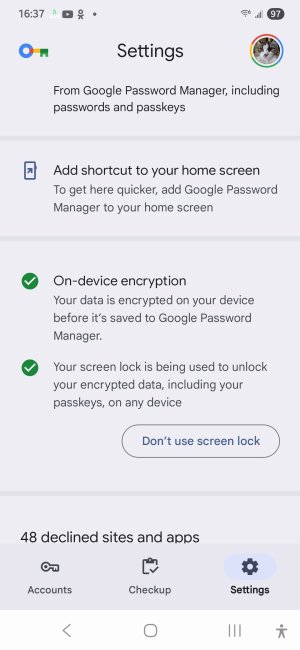
4. Is there an option there to turn on On-Device Encryption?
 
FYI, I edited your screenshot with the map as well. Be careful about posting identifying info on public forums like this one.

If Bkdodger1's suggestions don't help, then try this:

1. Open your Google app, tap your profile pic at the upper right, then Manage Your Google Account.
2. Go to Security & Sign-In
3. Select Password Manager
4. Is there an option there to turn on On-Device Encryption?
 

Attachments

  • Screenshot_20260222_163706_Google Play services.jpg
    Screenshot_20260222_163706_Google Play services.jpg
    167 KB · Views: 3

Latest posts

Trending Posts

Forum statistics

Threads
961,224
Messages
6,985,435
Members
3,164,678
Latest member
Damn Dreya